How to log fridge & freezer temperatures with QR codes
Fridge and freezer checks live in LogYou's Food Safety section. This guide takes you from adding each fridge and freezer, to printing a QR code sticker for its door, to logging the temperature in seconds — by scanning the sticker or by tapping it in by hand.
Last checked: 21 November 2026 · Screenshots taken from our sample kitchen, Riverside Bistro.
What you need
- Food Safety switched on for your site (it's on in the Setup Wizard by default).
- An owner or manager to add the equipment and print the stickers.
- A printer, or a label printer, for the QR stickers (optional — you can always log by hand).
- A phone or tablet with a camera to scan.
Part 1
Add your fridges & freezers
There are two ways in: the Setup Wizard when you first join, or Settings at any time afterwards.
Option A — in the Setup Wizard
Go to step 4: Fridges & Freezers
New owners see the Setup Wizard straight after signing up. You can also open it later from Settings → Run Setup Wizard. Step 4 of 6 is Fridges & Freezers.
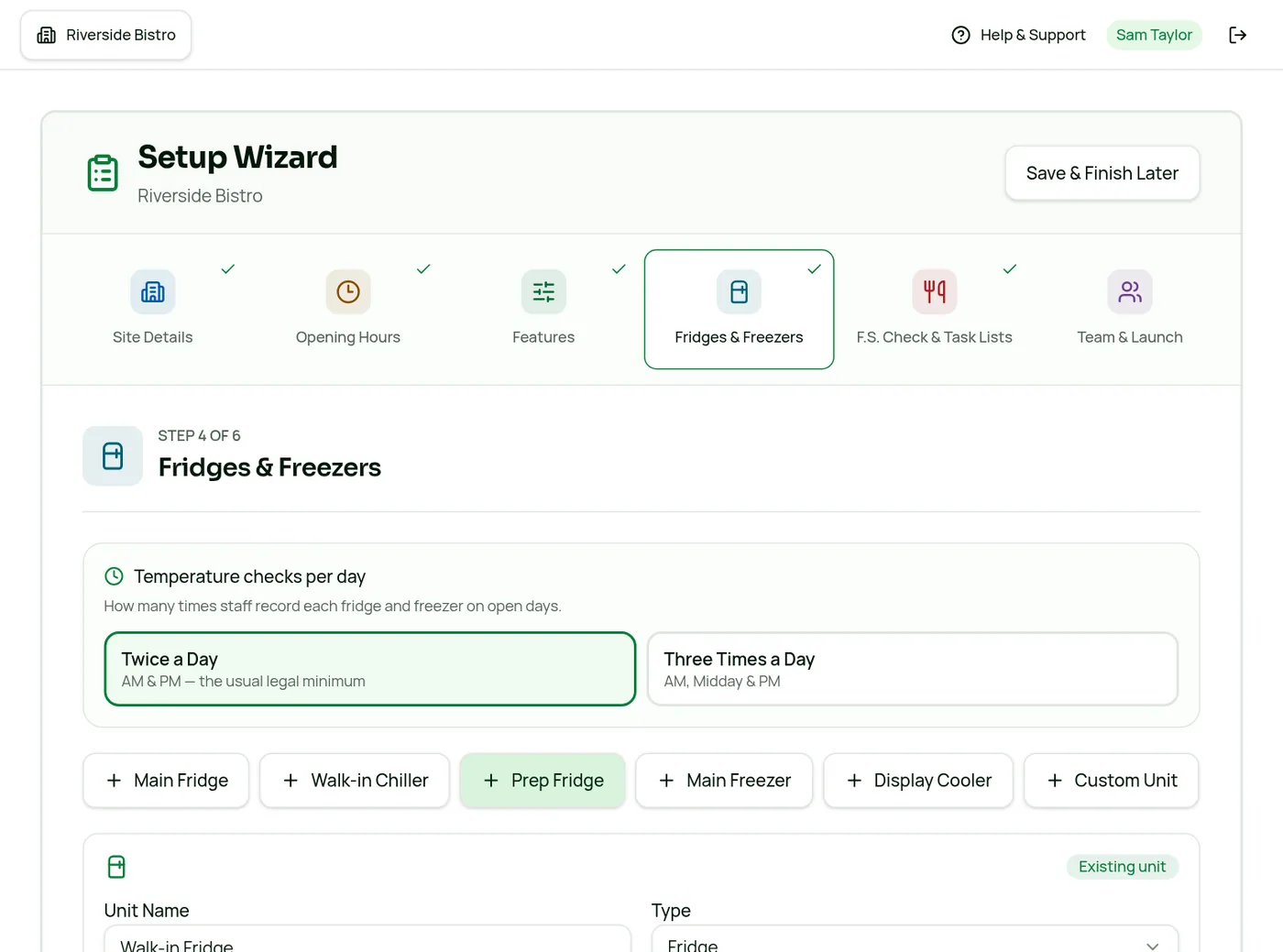
Step 4 of the Setup Wizard. Tap a quick-add button or Custom Unit. Choose how many checks a day
Pick Twice a Day (AM & PM — the usual legal minimum) or Three Times a Day (AM, Midday & PM). This applies to every fridge and freezer at the site.
Add each unit
Tap a quick-add button — Main Fridge, Walk-in Chiller, Prep Fridge, Main Freezer, Display Cooler — or Custom Unit. For each one, check the Unit Name, Type (Fridge or Freezer) and the Min °C and Max °C safe range. Then tap Save & Continue.
Option B — in Settings
Open Settings, then the Food Safety tile
In the sidebar, open Settings and tap the Food Safety tile.
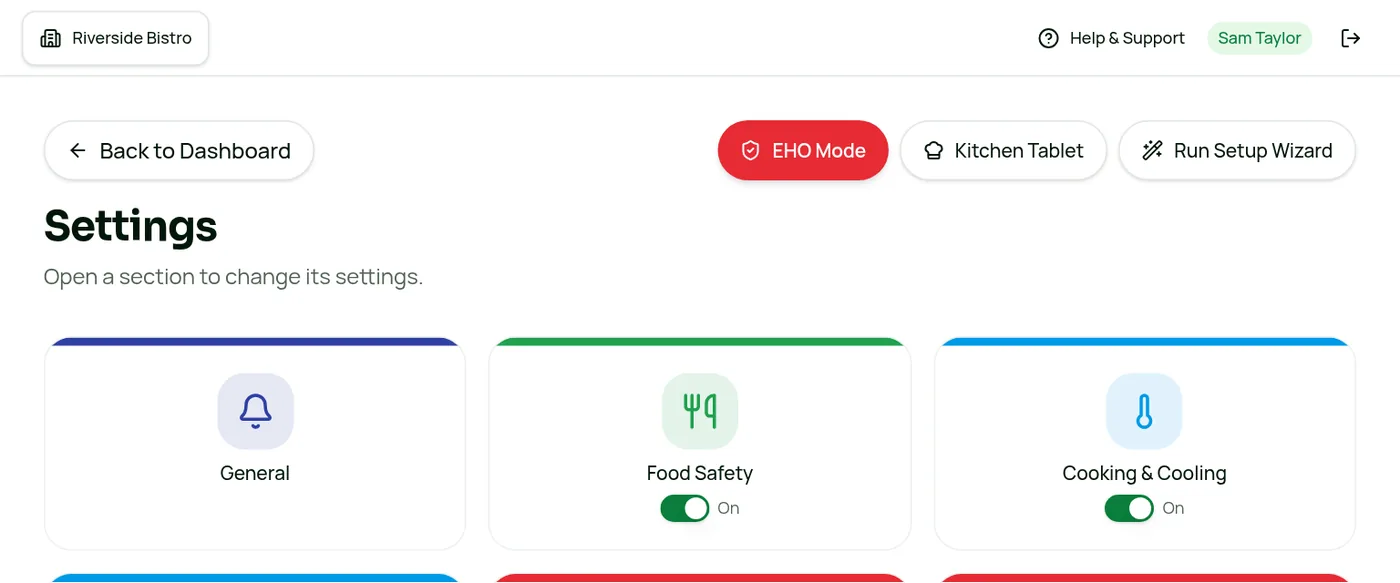
The Food Safety tile in Settings. Fridges & Freezers tab → Add Equipment
The Fridges & Freezers tab lists every unit with its safe range. Tap Add Equipment.
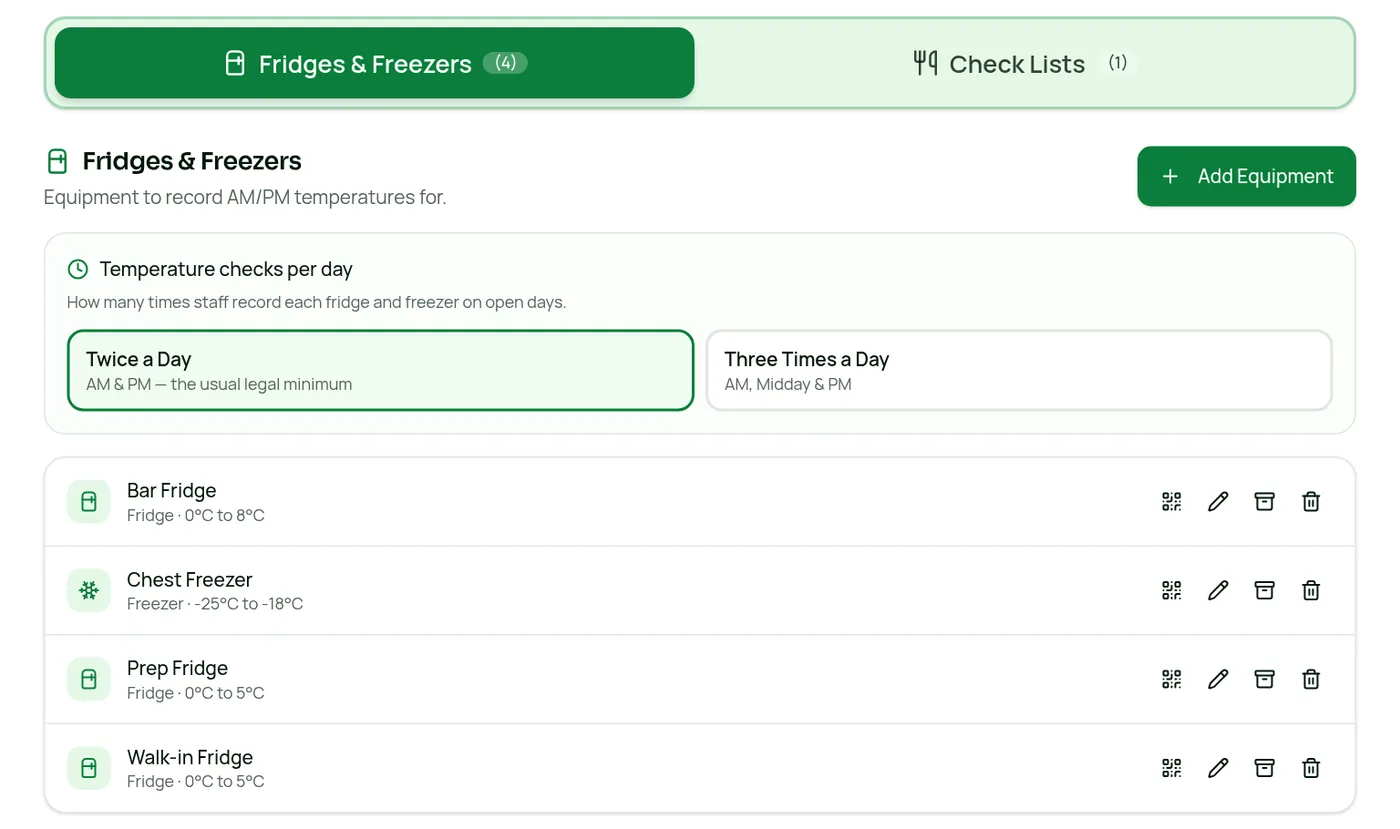
Each fridge and freezer has a QR code, edit, archive and delete button. Fill in the details and save
Type a Name, choose the Type and check the Min °C / Max °C. Fridges start at 0°C to 5°C; choosing Freezer changes it to −22°C to −18°C. Tap Save & Close, or Save & Add More to add the next one straight away.
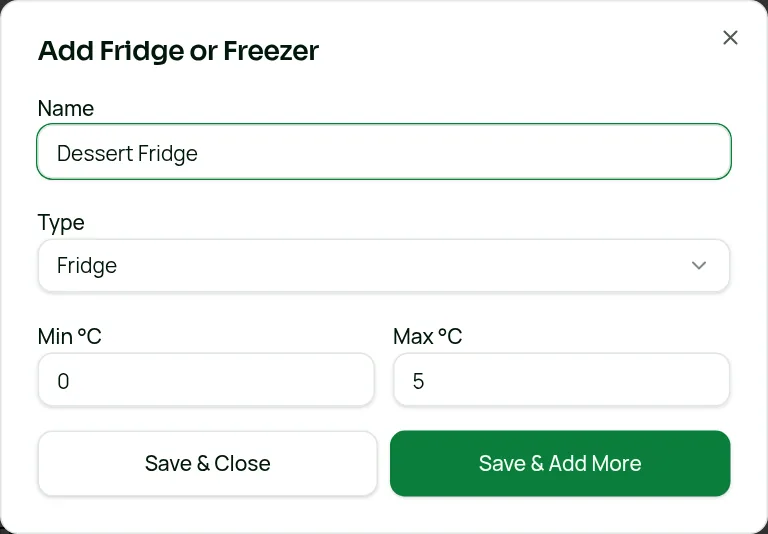
The Add Fridge or Freezer popup.
Replacing a fridge?
Part 2
Print a QR sticker for each unit
Every fridge and freezer gets its own QR code. Stick it on the door and anyone on the team can log it in seconds.
Tap the QR icon
In Settings → Food Safety → Fridges & Freezers, tap the small QR code icon on the row for that unit (see the list in Part 1).
Print or download the sticker
The QR Code popup shows the sticker with your site name, the unit's name and "Scan to log the temperature". Tap Print to print it now, or Download to save it as a picture for a label printer.
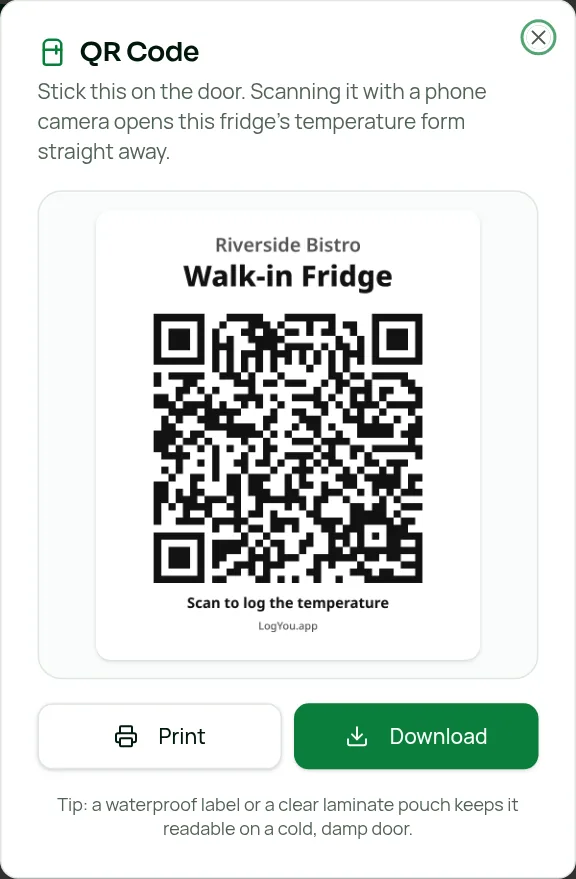
Each sticker names the site and the fridge, so nobody scans the wrong one. Stick it on the door
Put it at eye level on the outside of the door. A waterproof label or a clear laminate pouch keeps it readable on a cold, damp door.
Good to know
Part 3
Log a temperature by scanning
The fastest way to do a fridge check. Three ways to scan — they all open the same temperature form.
With your phone's own camera
Open the normal camera app and point it at the sticker. Tap the link that appears and LogYou opens straight on that fridge's temperature form. If you aren't signed in yet, LogYou asks you to sign in first, then takes you to the form.
Or with the Scan button inside LogYou
On phones and tablets, LogYou shows a Scan button in the top bar. Tap it, allow the camera the first time, then point it at the sticker. As soon as the code is read, the form opens.
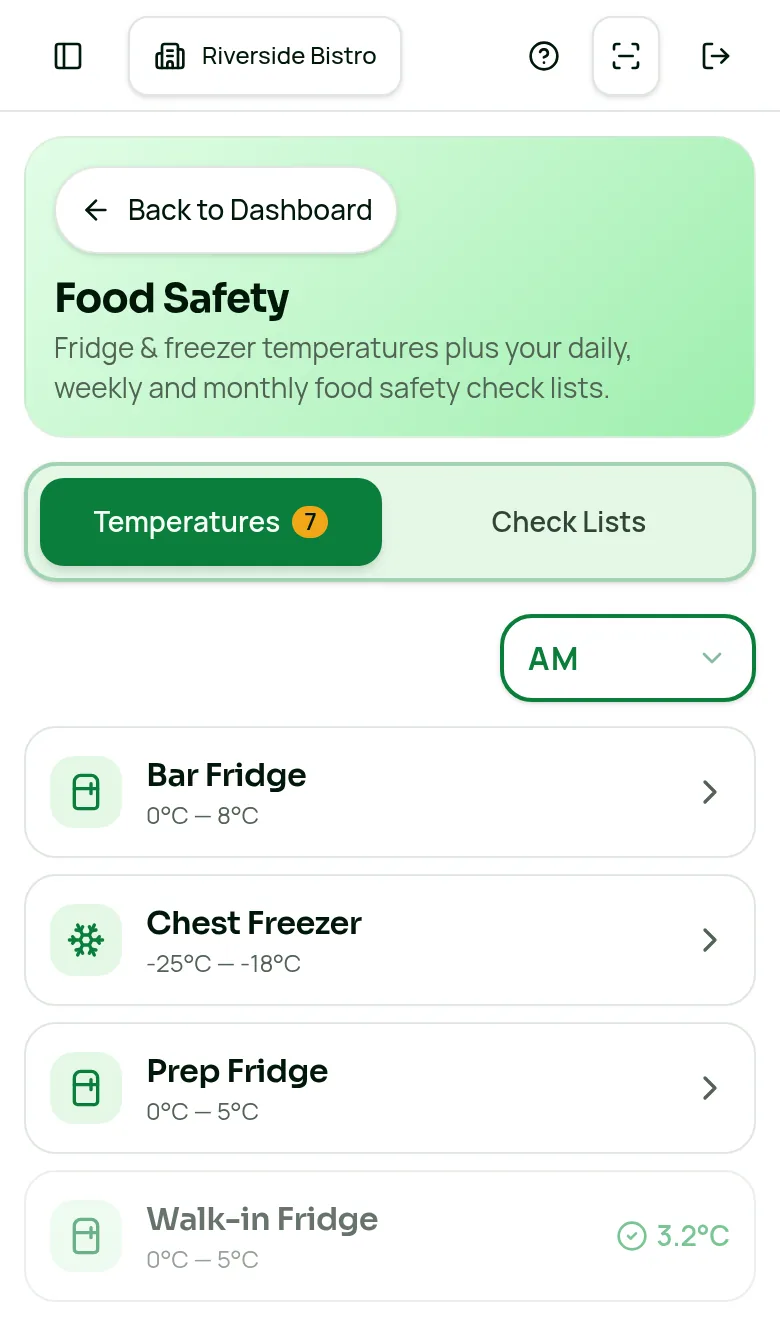
1. Tap the Scan button in the top bar. 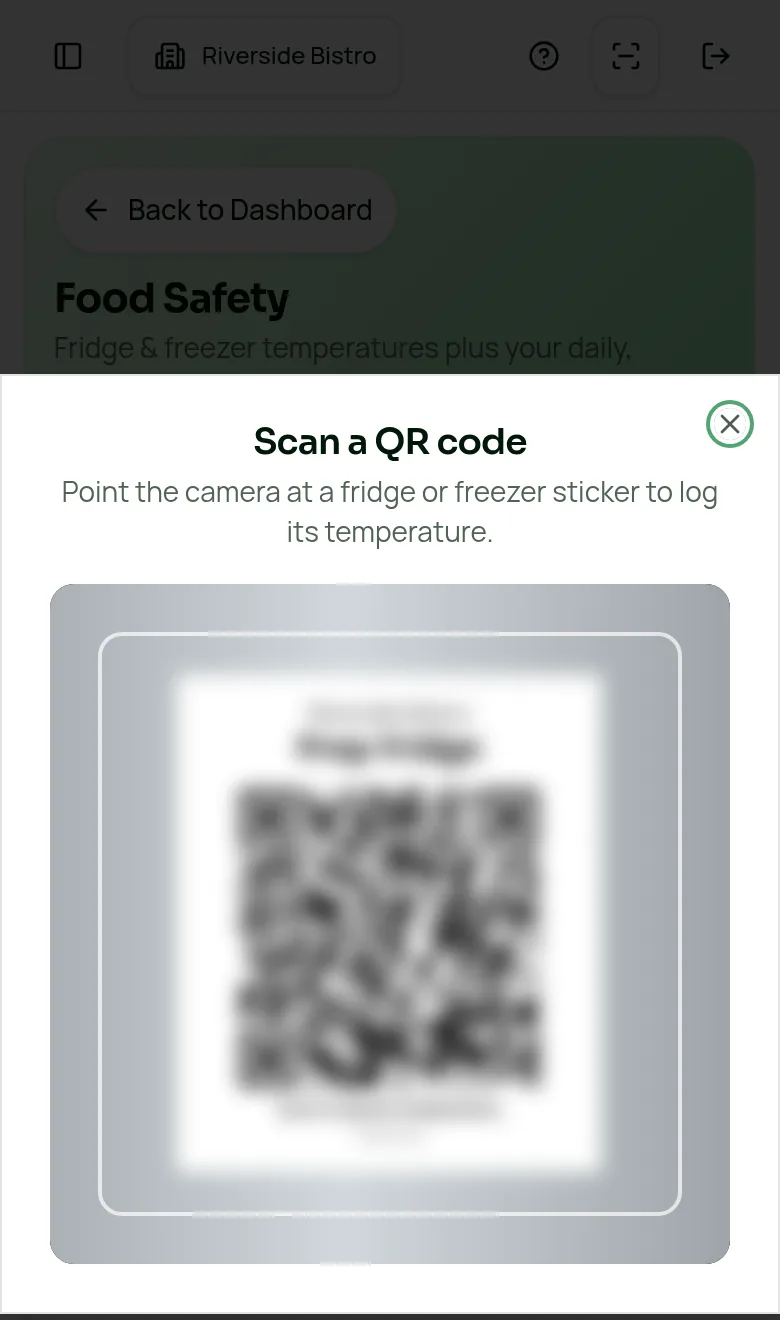
2. Point the camera at the sticker. 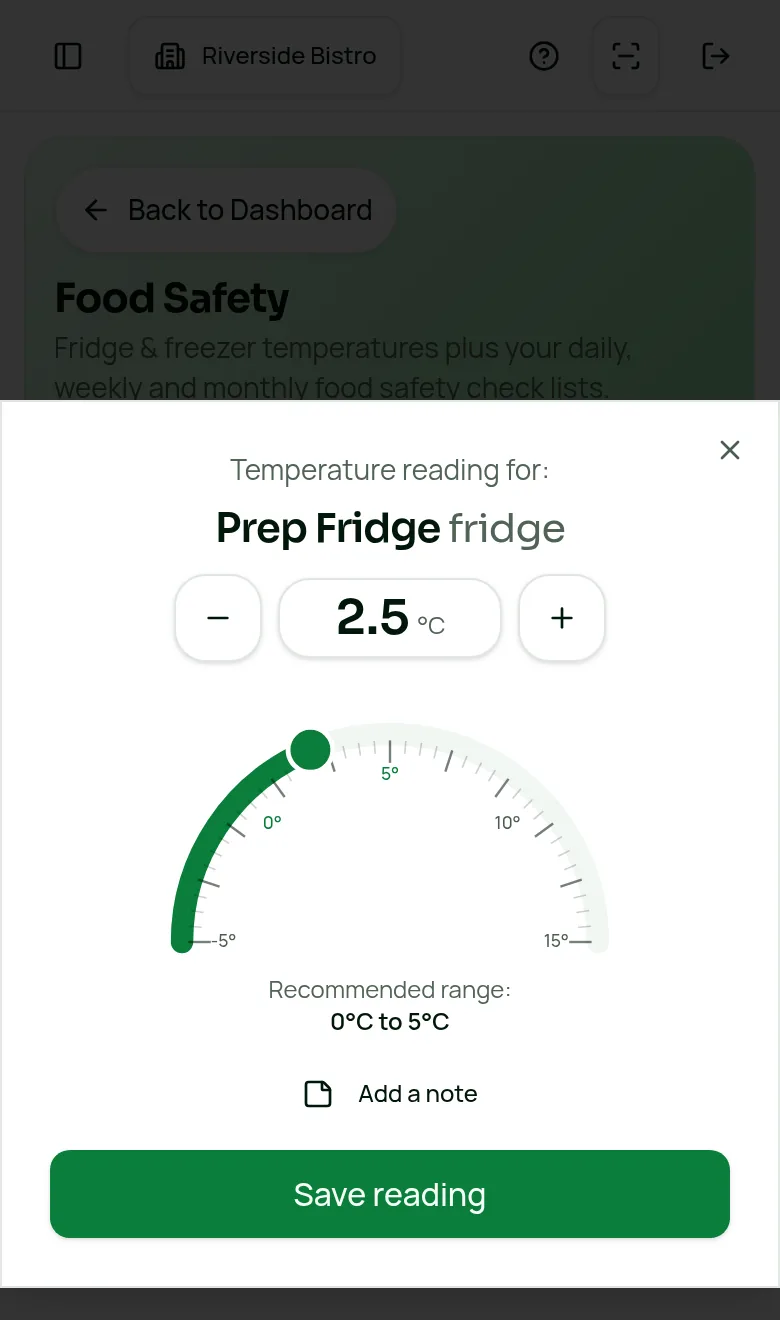
3. That fridge's form opens by itself. Or on the Kitchen Tablet
When someone is signed in on the Kitchen Tablet (KTM), a Scan QR button sits next to Lock Screen. It works the same way, and the reading is saved under that person's name.
Enter the temperature and save
Set the reading and tap Save reading — exactly as in Part 4 below.
What else a scan can tell you
- Already done: if that check has already been logged, LogYou shows the temperature that was recorded instead of asking again.
- Another of your sites: if the sticker belongs to another site you work at, LogYou switches to that site for you.
- Not your fridge: if your manager hasn't given you that unit, you'll be asked to check with them.
- Somebody else's sticker: LogYou only follows its own codes, and never opens other websites from a scan.
Coming soon
Part 4
Log a temperature by hand
No sticker? No problem — every check can be logged from the Food Safety page.
Open Food Safety → Temperatures
Open Food Safety in the sidebar. The Temperatures tab shows every fridge and freezer; the yellow number is how many readings are still to do today.
Pick the check, then tap the unit
Use the drop-down on the right to pick AM or PM (or Midday on three-check sites). Then tap the fridge or freezer. Units already logged for that check show their temperature with a tick.
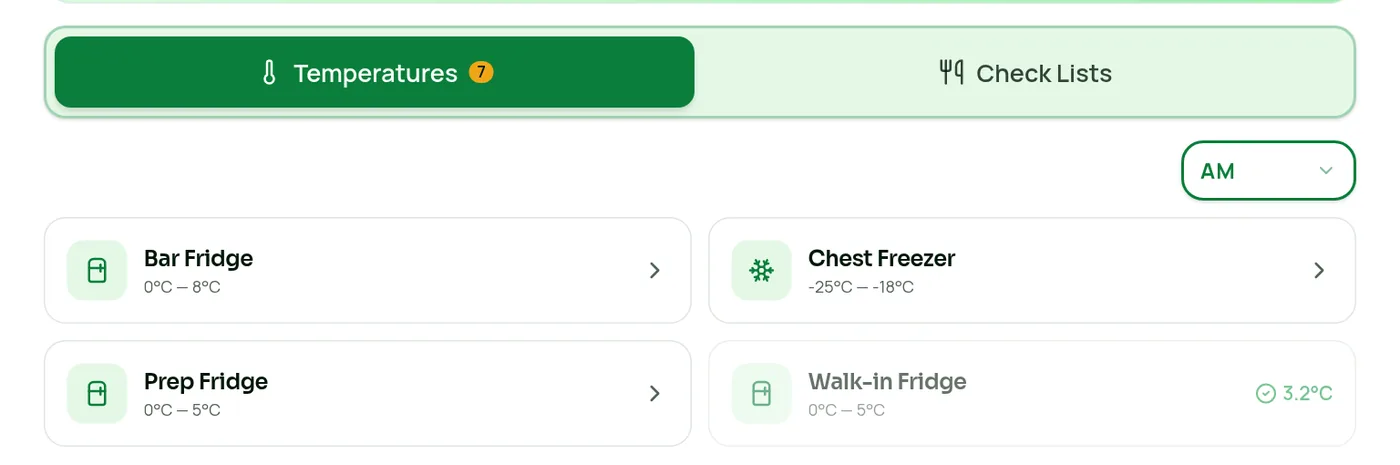
Tap a fridge to log it. The Walk-in Fridge is already done at 3.2°C. Set the temperature and tap Save reading
Drag the dial or use the − and + buttons until it shows the thermometer reading. The safe range for that unit is shown underneath. Tap Add a note if you want to add a comment, then Save reading.
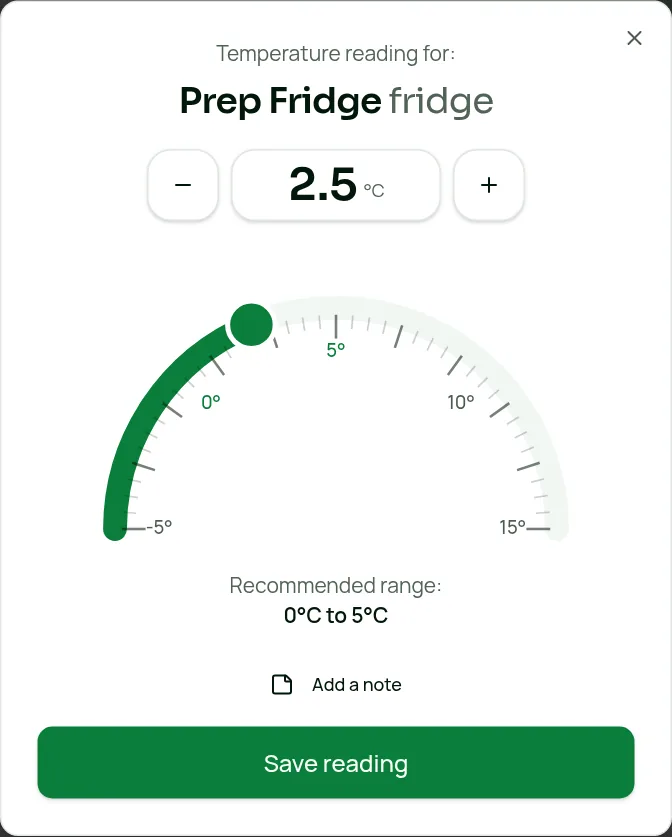
The reading form, showing the recommended range. Out of range? Say why
If the reading is outside the safe range, LogYou shows Out of safe range and asks you to explain before saving — for example "Door left open during delivery, rechecked in 30 minutes". The button reads Add a reason to save until you do.
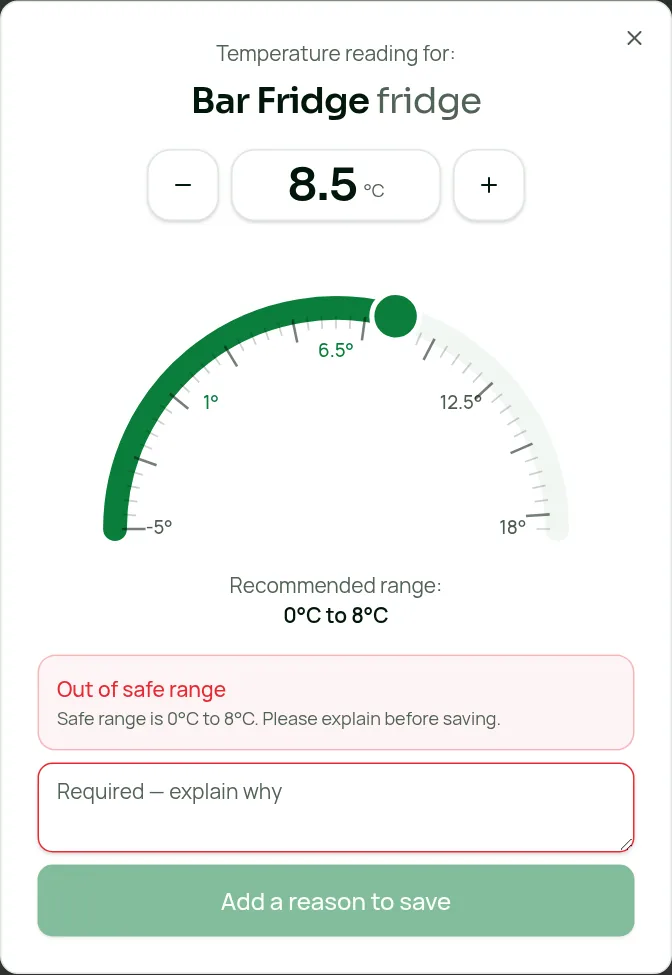
Readings outside the range need a short reason.
Part 5
Due times, missed checks & closed days
- Twice a day: the AM check counts as missed after 2pm; PM is due until the end of the day.
- Three times a day: AM is missed after 12 noon, Midday after 4pm, and PM at the end of the day.
- Missed isn't locked: a missed check drops out of "still to do", but you can still pick it in the drop-down and log it late — the tile says Missed — tap to log late.
- Closed days (from your opening hours) don't ask for readings and never count as missed.
- Every reading shows in Logs & Reports with who logged it and when, ready for your PDF reports or an inspection.
Part 6
Quick reference
| Where to add equipment | Setup Wizard step 4, or Settings → Food Safety → Fridges & Freezers |
|---|---|
| Default safe range | Fridges 0°C to 5°C, freezers −22°C to −18°C (you can change both) |
| Checks per day | Twice a day (AM & PM) or three times a day (AM, Midday & PM) |
| Where to get the QR sticker | Settings → Food Safety → QR icon on each fridge or freezer |
| Scan with | The phone's own camera, the Scan button in LogYou, or Scan QR on the Kitchen Tablet |
| AM check missed after | 2pm (twice a day) or 12 noon (three times a day) |
| Midday / PM checks missed after | 4pm / end of the day |
| Out-of-range reading | Saved only with a short reason |
Next, try the allergen menu upload guide, or go back to the How 2 user guide for other sections.
Put a QR code on every fridge
Start a free trial, add your fridges and freezers, print the stickers and log your first reading in under five minutes.
Start Free 7-Day TrialNo card required