How to upload your menu and make your allergen chart
Typing every dish in by hand takes ages. With LogYou you simply upload your menu — a PDF or a photo — and LogYou reads the dish names for you. You tap the allergens for each dish, and your 14-allergen chart is ready for the team, your customers and your inspector.
Last checked: 21 November 2026 · Screenshots taken from our sample kitchen, Riverside Bistro, using its sample menu.
What you need
- An owner or manager account.
- Your menu as a PDF, or a clear photo of the printed menu.
- Your recipes and supplier labels to hand, so you can confirm each dish's allergens.
Part 1
Before you start
- Everyone can view the allergen chart, so front-of-house staff can answer customers' questions.
- Only owners and managers can upload a menu, add, edit or delete dishes.
- LogYou covers the 14 UK allergens that food businesses must tell customers about. See the Food Standards Agency's allergen guidance for food businesses.
- You always choose the allergens yourself. LogYou reads the dish names, never guesses what's in them.
Part 2
Upload your menu
This is the clever bit. LogYou reads your menu on your own phone, tablet or computer — free, with nothing sent anywhere until you save.
Tap Upload Menu
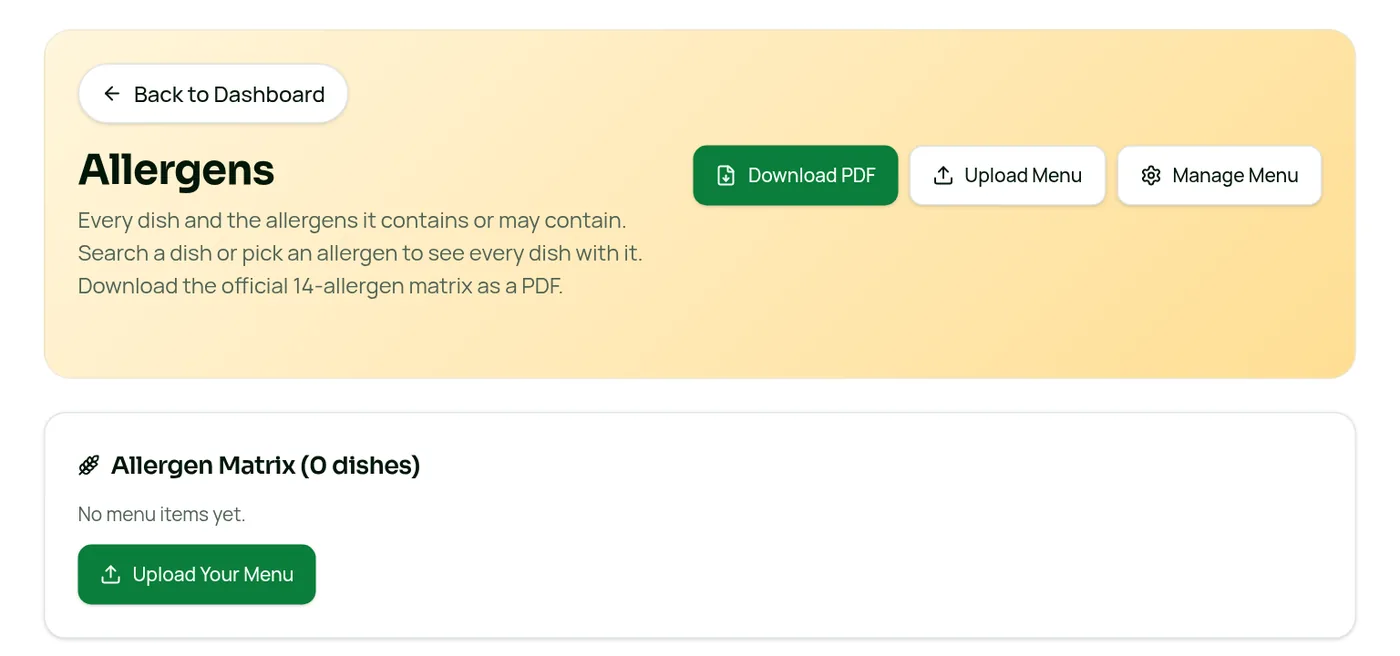
On the Allergens page, tap Upload Menu (or Upload Your Menu when the chart is empty).
Choose a file or take a photo
Tap Choose a File for a PDF or a photo (JPG, PNG), or Take a Photo to snap your printed menu with a phone or tablet. LogYou reads it straight away — PDFs take a few seconds, photos can take up to a minute.
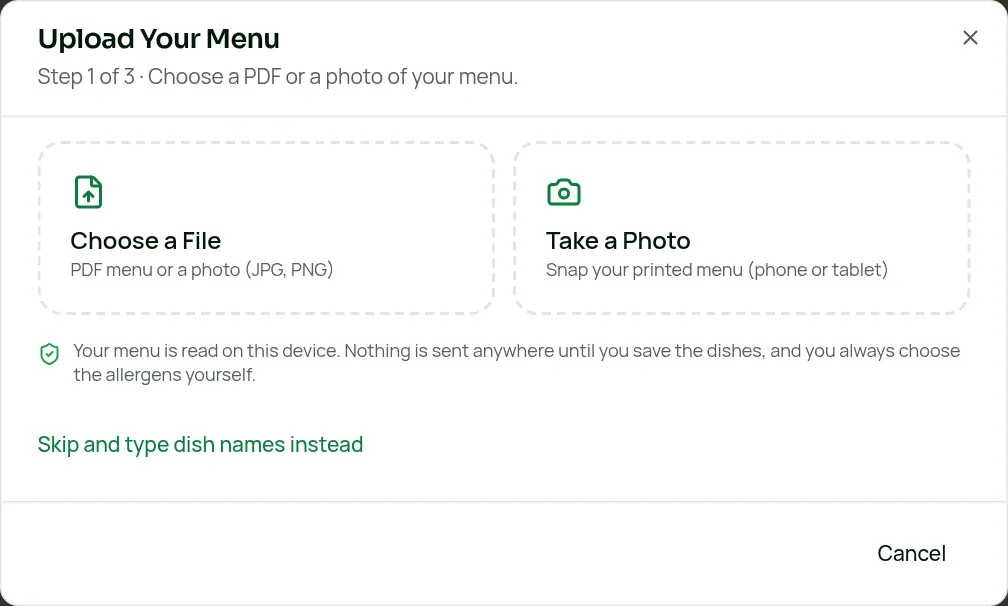
Step 1 of 3. Your menu is read on this device.
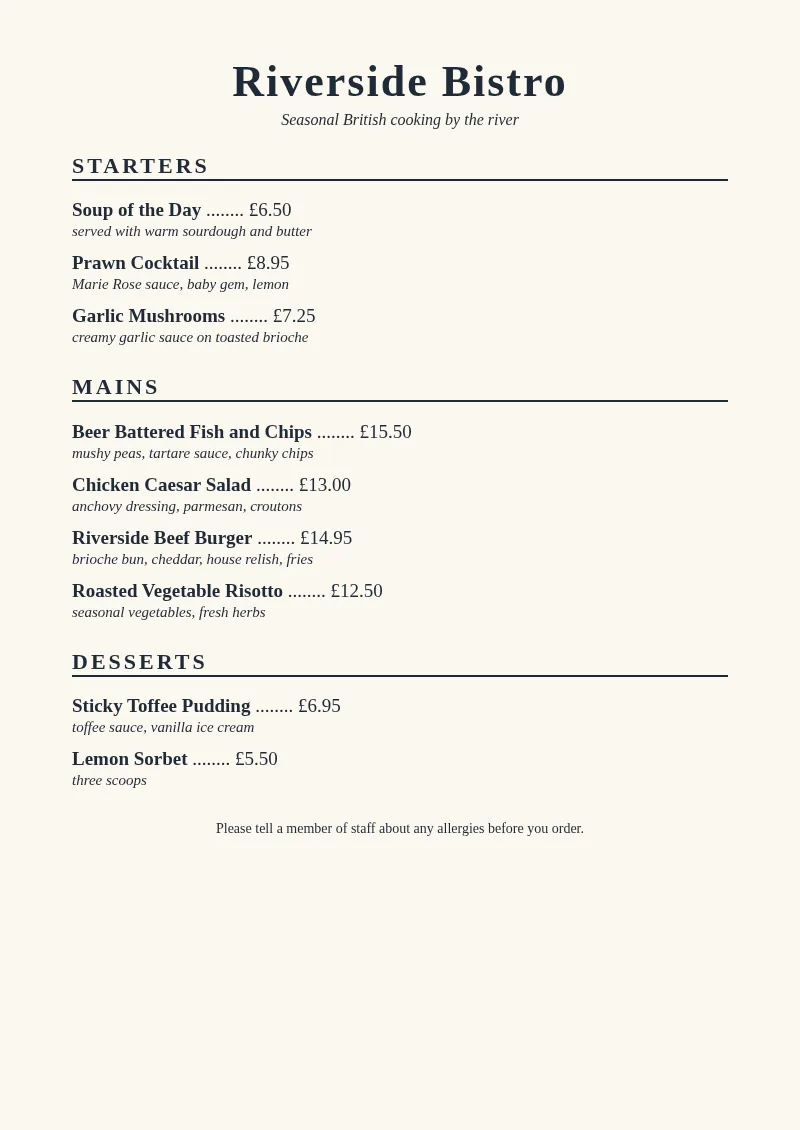
Here's the sample menu we uploaded for Riverside Bistro — dish names, prices, descriptions and section headings all mixed together, just like a real menu:
Tips for the best results
Part 3
Check the dish names
LogYou picks out just the dishes
Step 2 lists the dishes it found — only the names. Prices, descriptions, headings and notices are left out, and the menu's section headings (Starters, Mains, Desserts) become each dish's category.
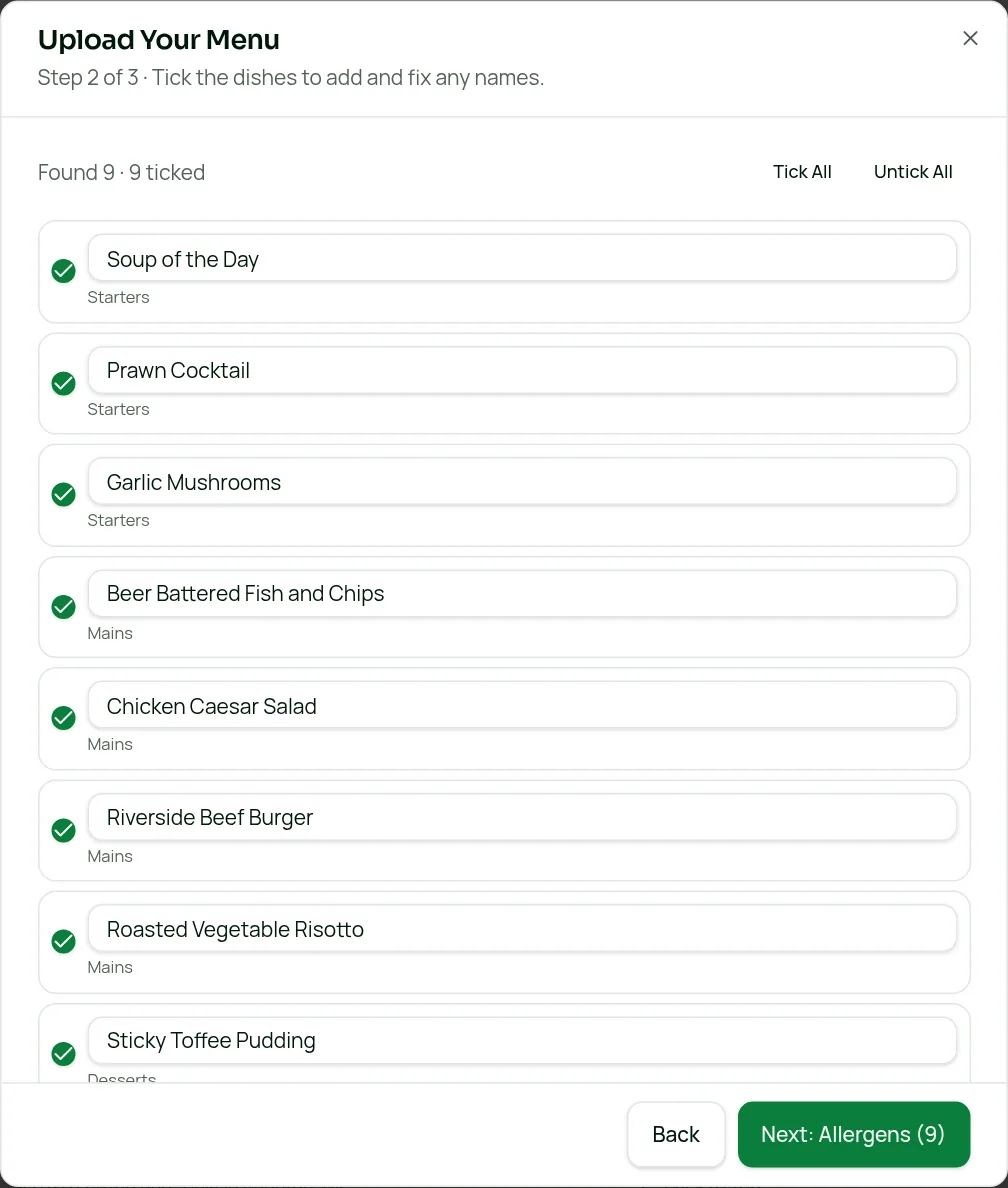
All 9 Riverside Bistro dishes found, with no descriptions or prices. Tick, untick and tidy up
Untick anything you don't want (or use Tick All / Untick All), and tap any name to fix the spelling. Missed one? Type it into Add a dish by hand at the bottom. Dishes already on your chart are marked Already on your menu, so you don't add them twice.
Tap Next: Allergens
The button shows how many dishes you're adding.
Part 4
Tap the allergens
Tap once for Contains, twice for May Contain
Each dish shows the 14 allergens. Tap an allergen once and it turns red — Contains. Tap again for amber — May Contain (a genuine cross-contamination risk). Tap a third time to clear it.
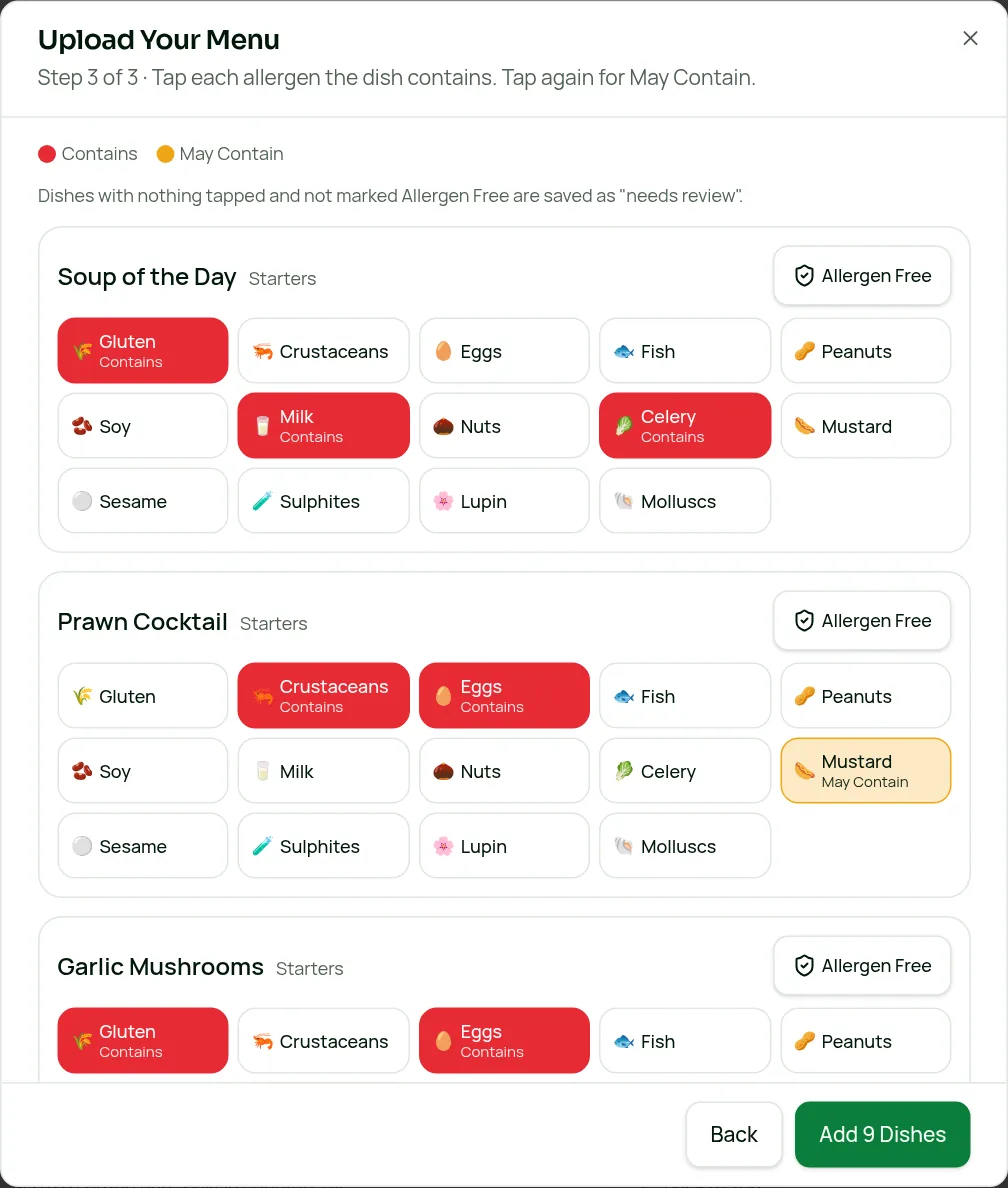
Red = Contains, amber = May Contain. No allergens? Tap Allergen Free
If a dish has none of the 14 allergens, tap Allergen Free so it's clearly confirmed. A dish with nothing tapped and not marked Allergen Free is saved as needs review, so nothing slips through.
Tap Add Dishes
Tap Add 9 Dishes (the number matches your dishes). They appear on your allergen chart straight away, signed as reviewed by you.
Part 5
Add or change a dish by hand
For a new special, a recipe change or a supplier swap.
Open Manage Menu
On the Allergens page, tap Manage Menu to open Allergens Setup. Every dish is listed with its allergens, the date it was last reviewed, and Edit and Delete buttons. Deleting always asks you to confirm first.
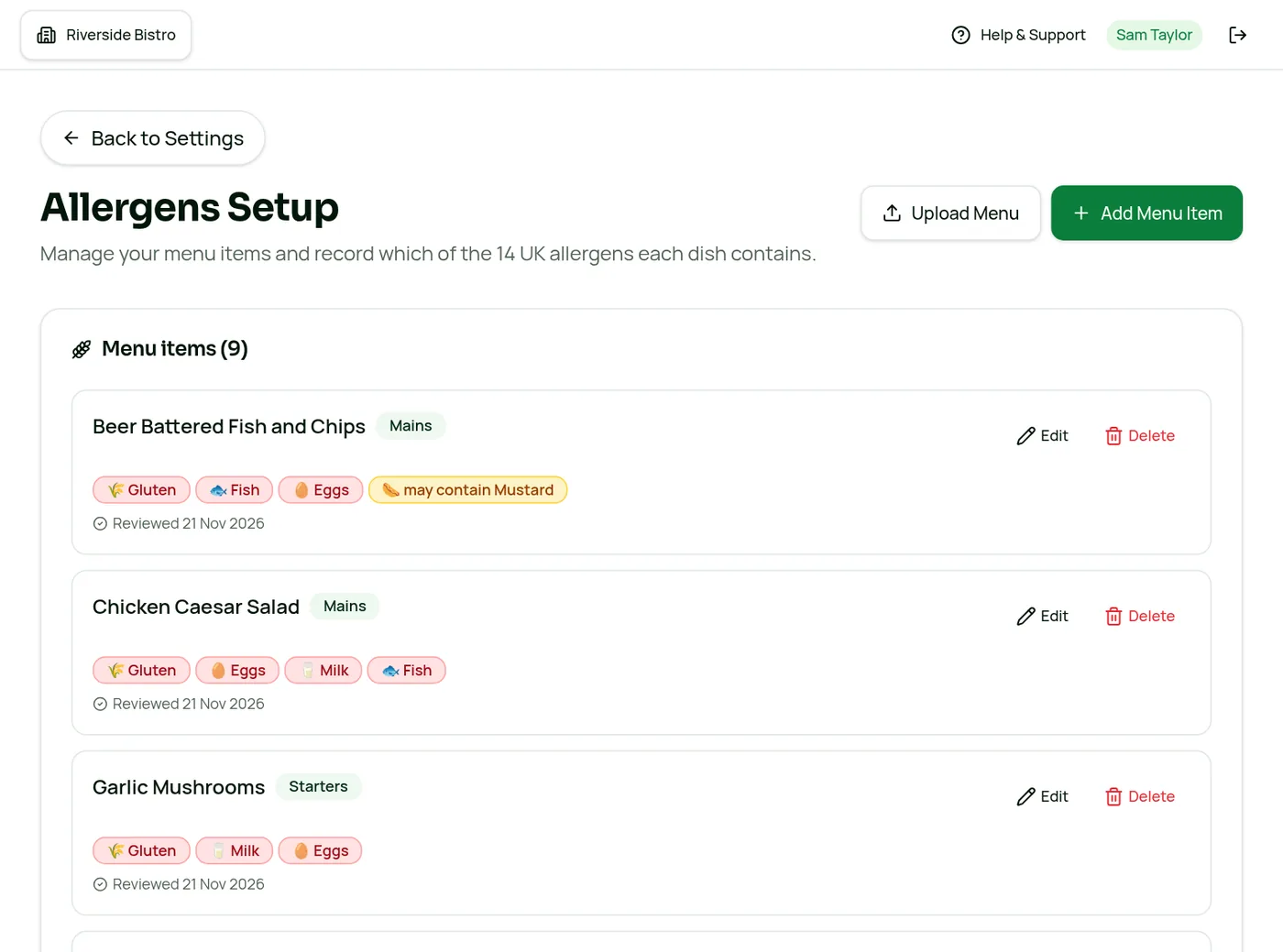
Allergens Setup — add, edit or delete dishes. Add Menu Item
Tap Add Menu Item. Fill in the Name and, if you like, the category, description, ingredients and price. Turn on PPDS Item for food pre-packed for direct sale (Natasha's Law). Then tick Contains or May contain for each allergen — or Allergen Free — and tap Save.
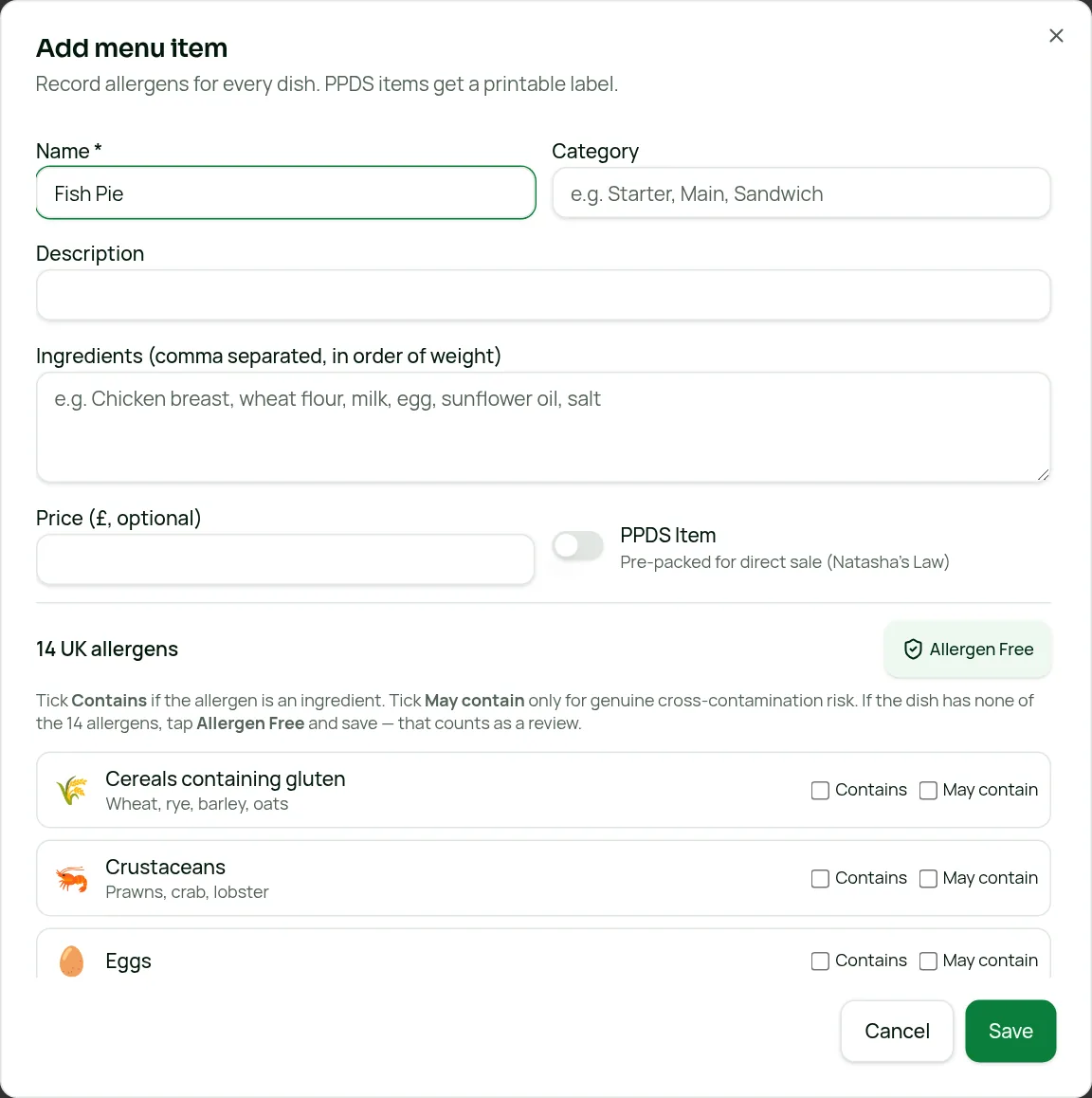
The Add menu item popup.
Part 6
Use and download your allergen chart
Everything on one screen
The Allergen Matrix shows each dish with only the allergens it contains (red) or may contain (amber), so it's quick to read on a phone.
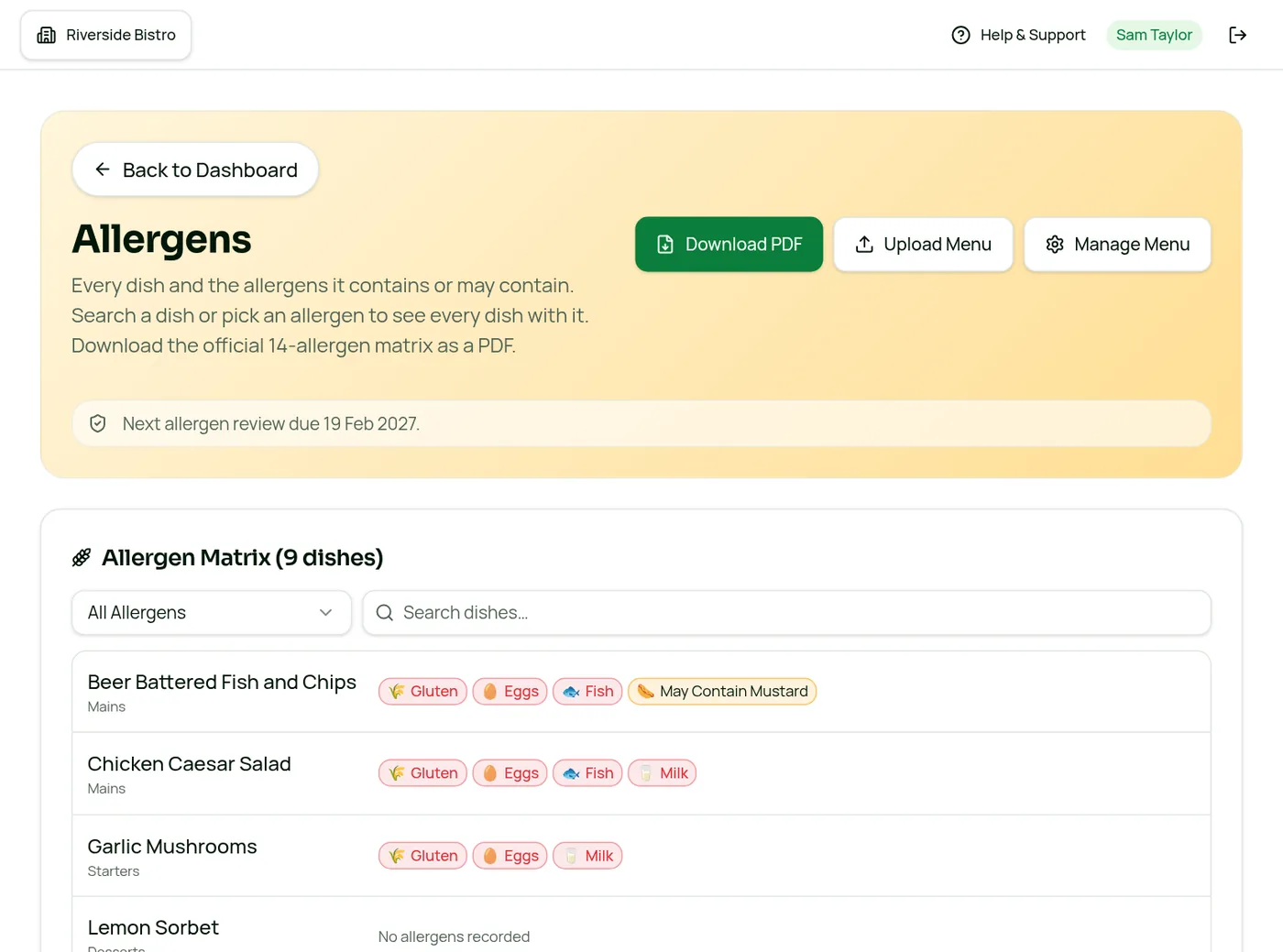
The Riverside Bistro allergen matrix. Search a dish or pick an allergen
Type in Search dishes… to find a dish, or pick an allergen from the drop-down to see every dish that contains or may contain it — perfect when a customer says "I'm allergic to milk".
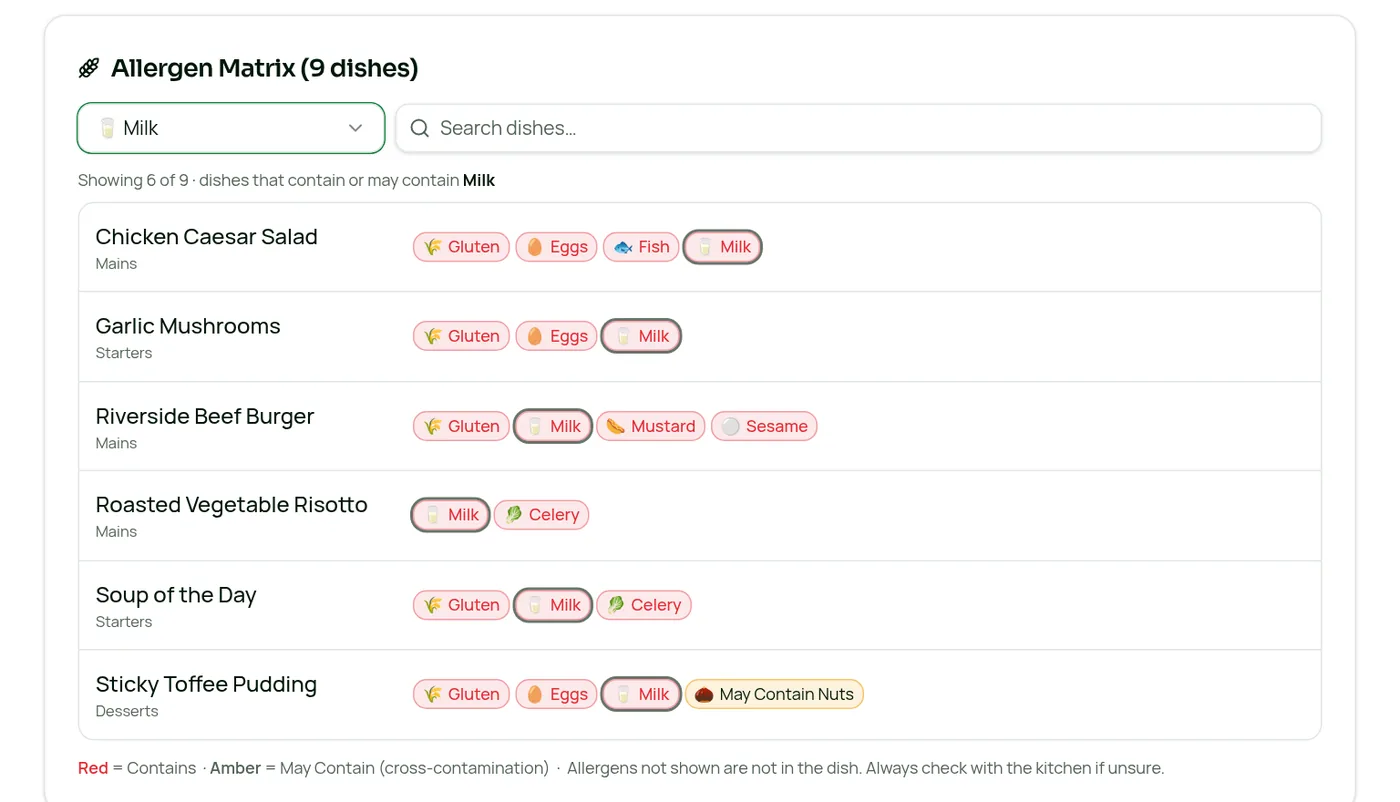
Showing every dish with milk. Download PDF
Tap Download PDF for the full 14-allergen chart to print or keep on file. Y means contains, MC means may contain and a blank means it doesn't. It's signed automatically with the name of the person who last reviewed the menu, the review date and the next review due.
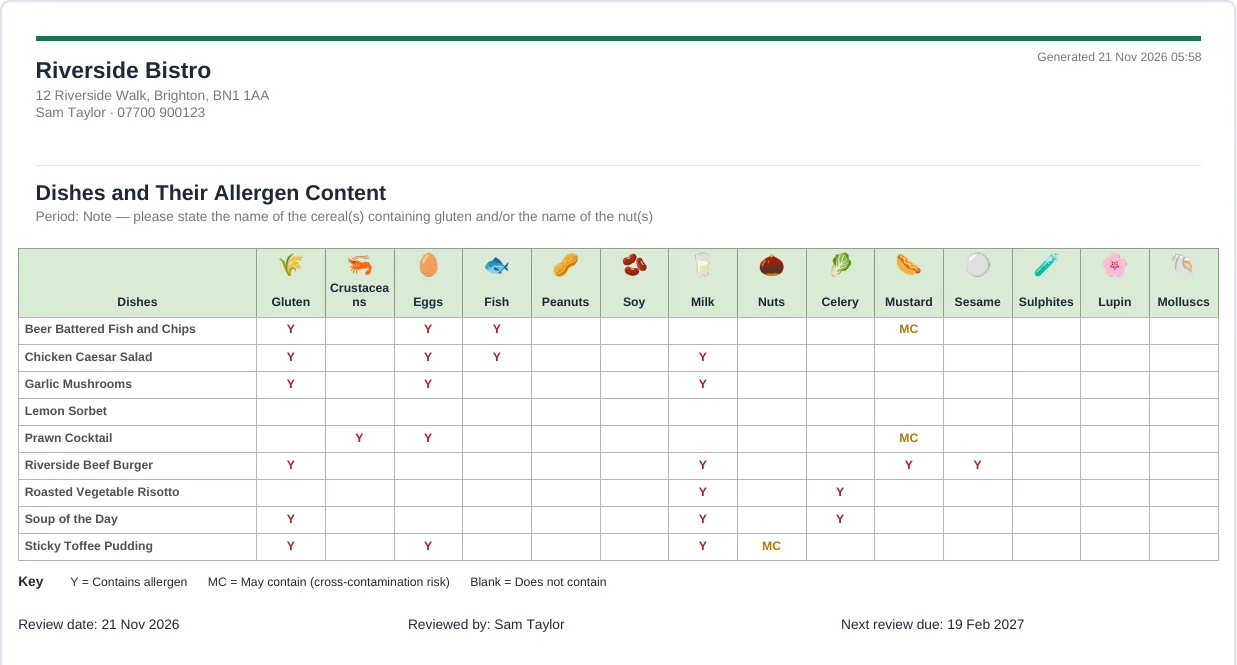
The downloaded chart, signed off automatically.
Part 7
The 90-day allergen review
Recipes and suppliers change. LogYou reminds you to check the whole menu every 90 days.
- The first review is due 90 days after your first dish is added. Editing or adding dishes doesn't move the date.
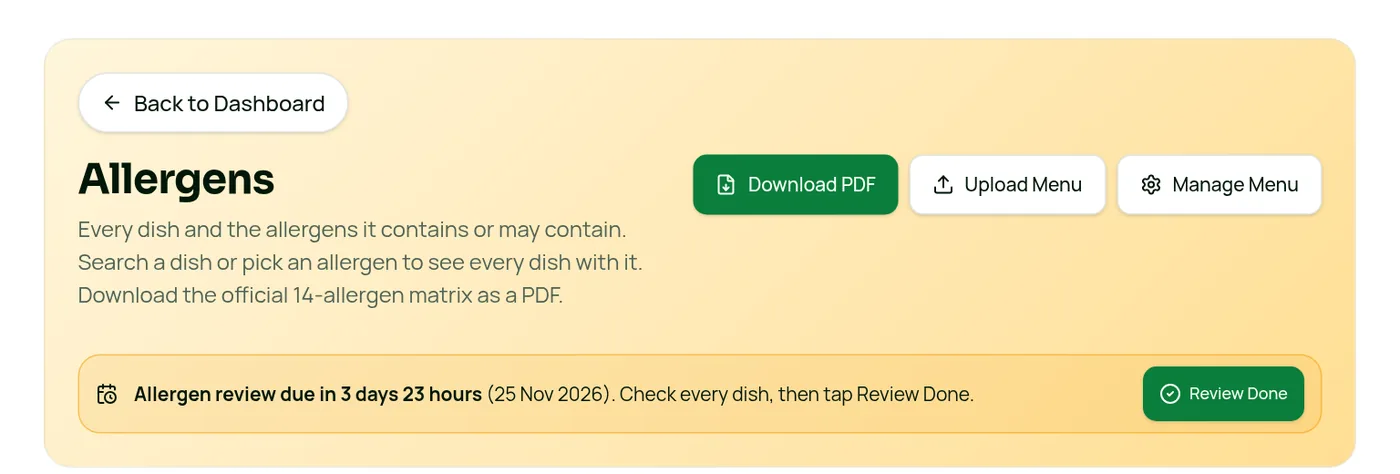
- From 7 days before, the Allergens page shows a countdown and a Review Done button.
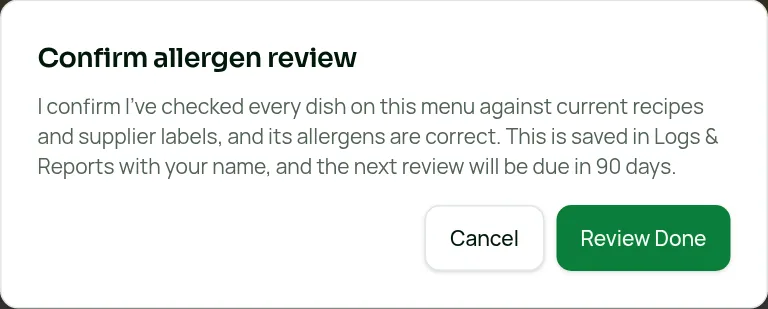
- Check every dish, tap Review Done and confirm. It's saved in Logs & Reports with your name, and the next review is due 90 days later.
- If the review goes overdue, owners and managers get a reminder when they sign in, and staff can't open the Allergens page until it's done — so nobody relies on an out-of-date chart.
Part 8
Quick reference
| Who can see the allergen chart | Everyone on the team |
|---|---|
| Who can upload, add, edit or delete dishes | Owners and managers |
| Menu files you can upload | PDF, JPG or PNG up to 25 MB, or take a photo |
| Does reading the menu cost anything? | No — it's read on your own device, free |
| Tap an allergen once / twice / three times | Contains / May Contain / not present |
| PDF chart key | Y = Contains · MC = May contain · Blank = Does not contain |
| Full menu review | Every 90 days, Review Done appears 7 days before |
| If the review goes overdue | Staff can't open Allergens until a manager taps Review Done |
Prefer paper? Grab our free allergen matrix template. Or read the fridge temperatures & QR codes guide, or go back to the How 2 user guide.
Upload your menu in minutes
Start a free trial, upload your menu and have your allergen chart ready before your next service.
Start Free 7-Day TrialNo card required