How to use Kitchen Tablet Mode (KTM)
In LogYou we use the short name KTM for Kitchen Tablet Mode. KTM turns one tablet in your kitchen into a shared team device: everyone taps their own name, enters a 4-digit PIN and records only the tasks they're allowed to do. Every record is signed by the right person, and settings stay out of reach.
Last checked: 16 November 2026 · Screenshots taken from a LogYou test kitchen.
What you need
- Any tablet with an up-to-date web browser (iPad or Android). Nothing to install.
- A charger near where the tablet lives — KTM keeps the screen awake.
- An owner or manager to turn it on.
- Your team added in Sites & Team, each with a display name.
Part 1
Turn KTM on
Owners and managers do this once, on the tablet itself. It takes under a minute.
Sign in on the tablet and open Settings
Sign in to LogYou on the tablet with your own owner or manager account, then open Settings. Tap the Kitchen Tablet button at the top of the page.
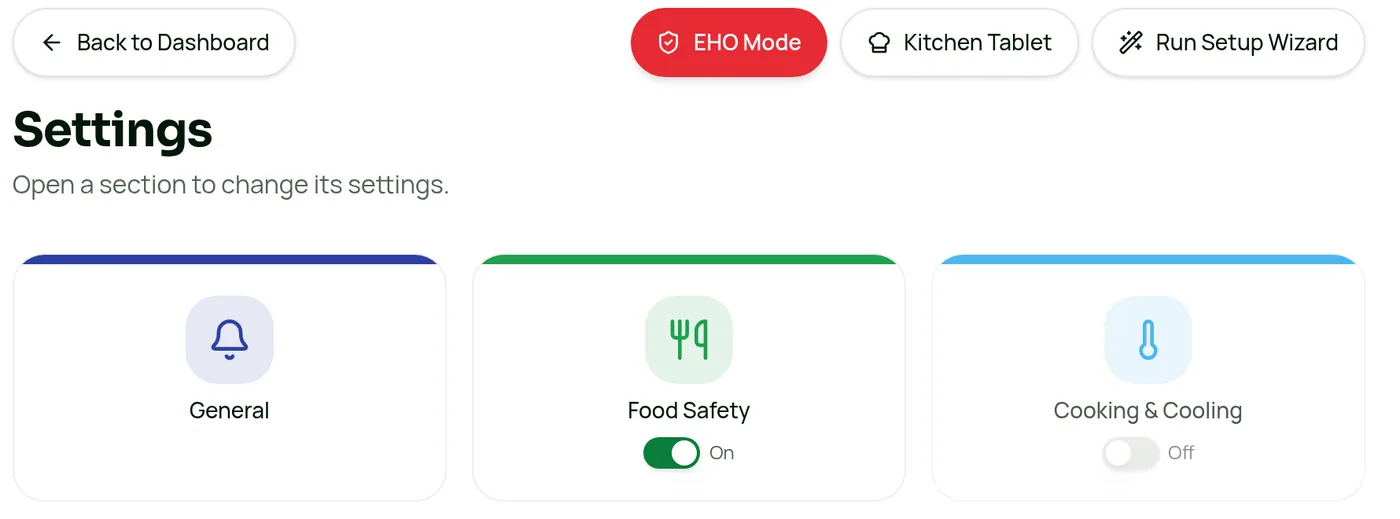
The Kitchen Tablet button sits at the top of Settings. Confirm this device should become a Kitchen Tablet
A popup explains what will happen: the tablet changes to your site's team tablet with big name buttons. Read the charger tip, then tap Next: choose exit passcode. If your own tablet PIN is still 2580, LogYou first asks you to choose your own PIN (and enter it twice) — for security, KTM can't be turned on while you're still using 2580.
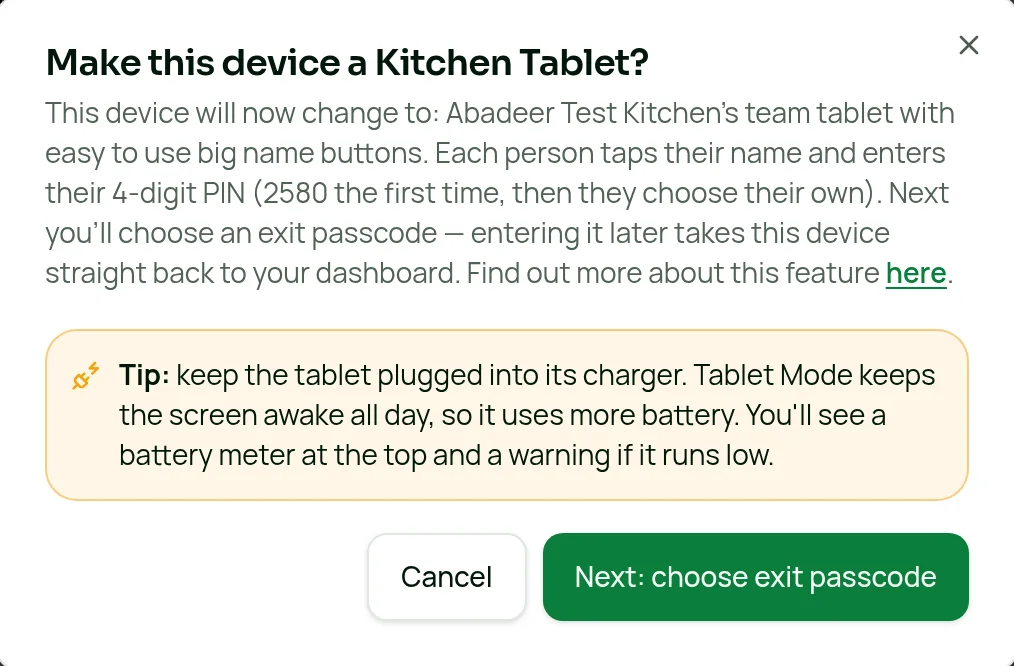
Tap Next to choose the passcode that will let you leave KTM later. Choose a 4-digit exit passcode
Type a 4-digit passcode on the keypad, then type it again to confirm. It can't be 2580 or easy to guess — no same number four times (like 1111) and no numbers in a row (like 1234). Keep it to owners and managers — it's the only everyday way to take the tablet out of KTM.
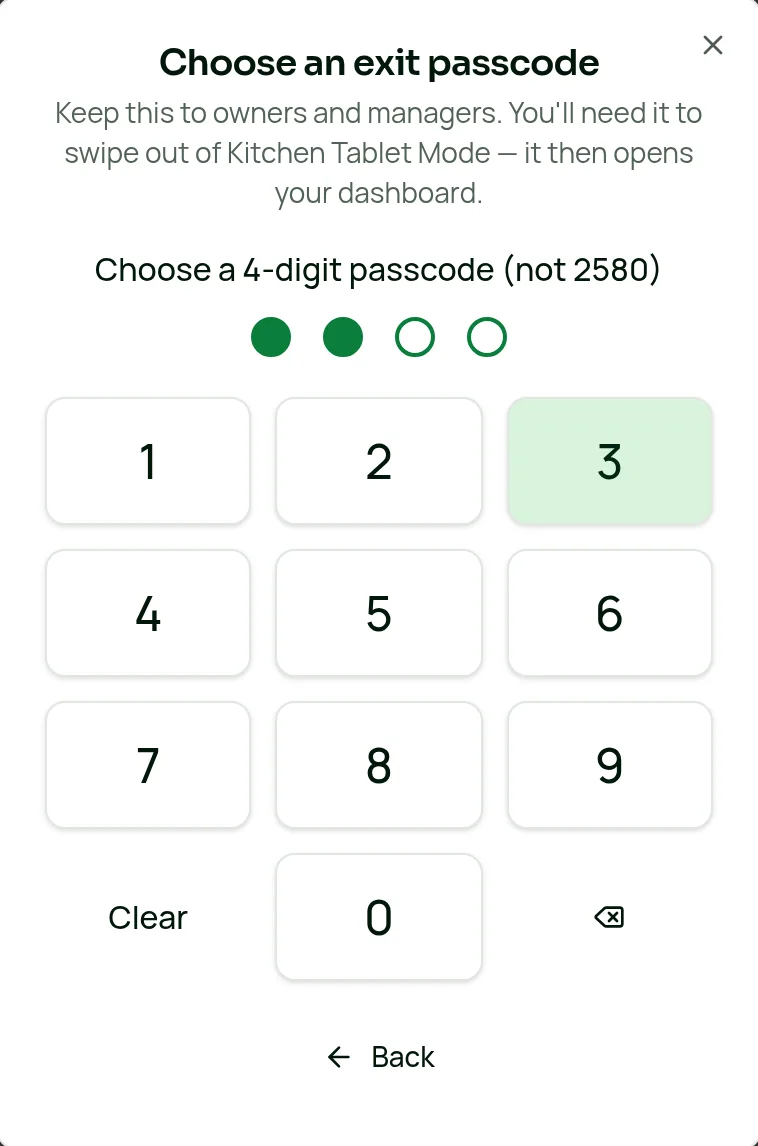
The dots fill in as you type. You'll be asked to enter it twice. The tablet switches to the name screen
Your own account signs out of the tablet and the name screen appears. KTM is now on and stays on — even if the tablet restarts or the app is closed, it opens straight back on the name screen.
Part 2
Sign in with your name and PIN
This is what the whole team uses every shift.
Tap your name
The name screen shows everyone on the team as a big button, colour-coded by role. A red number on a name shows how many tasks that person still has to do today, and the banner at the top shows the total for the site.
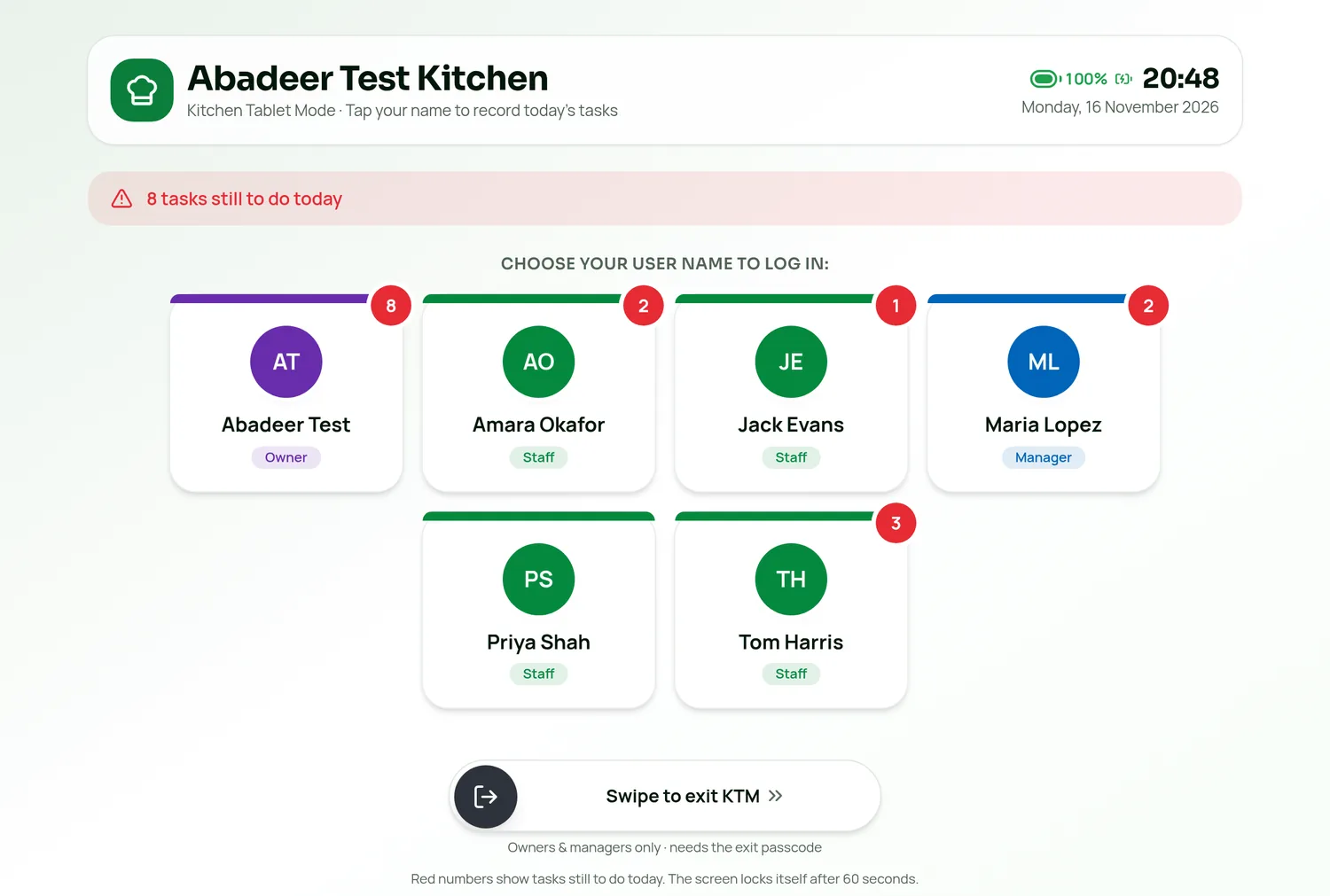
The KTM name screen. Sample team names are shown for illustration. Enter your 4-digit PIN
Type your PIN on the keypad. The first time, everyone's PIN is 2580. Tapped the wrong name? Use Back to names.
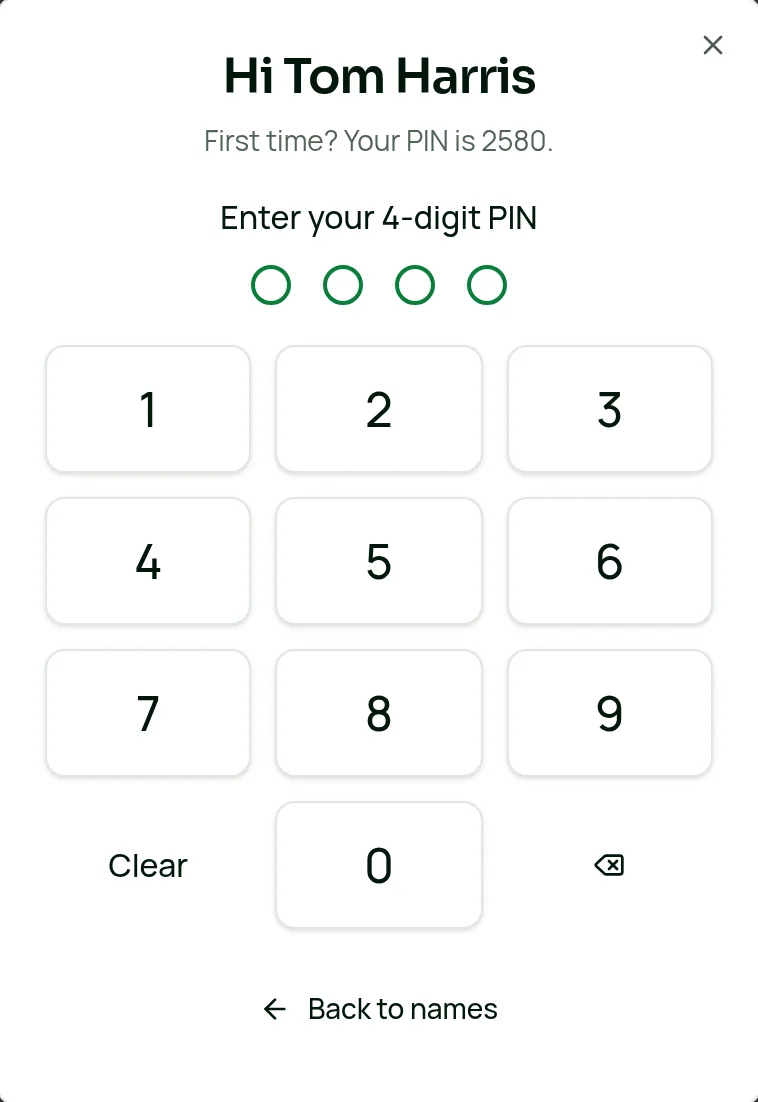
Each person gets their own PIN keypad. First time only: choose your own PIN
After using 2580, LogYou asks you to choose your own 4-digit PIN and enter it again to confirm. It can't be 2580, the same number four times (like 1111) or numbers in a row (like 1234). You can't continue until you've set it. From then on, only your PIN opens your name.
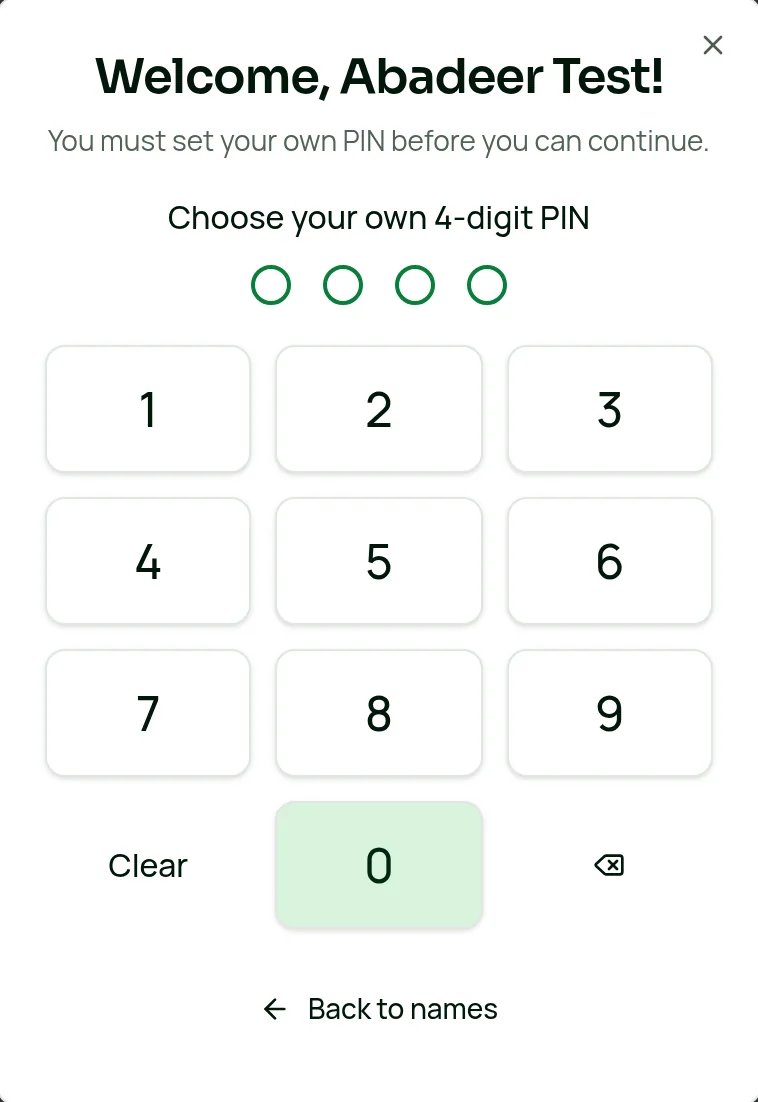
Set your own PIN the first time you sign in.
Part 3
Record today's tasks
Pick a section
Today's Kitchen Tasks shows only the sections you're allowed to record in — for example Food Safety, Shelf Time or Task Lists. Red numbers show what's still due. The top bar always shows who is signed in.
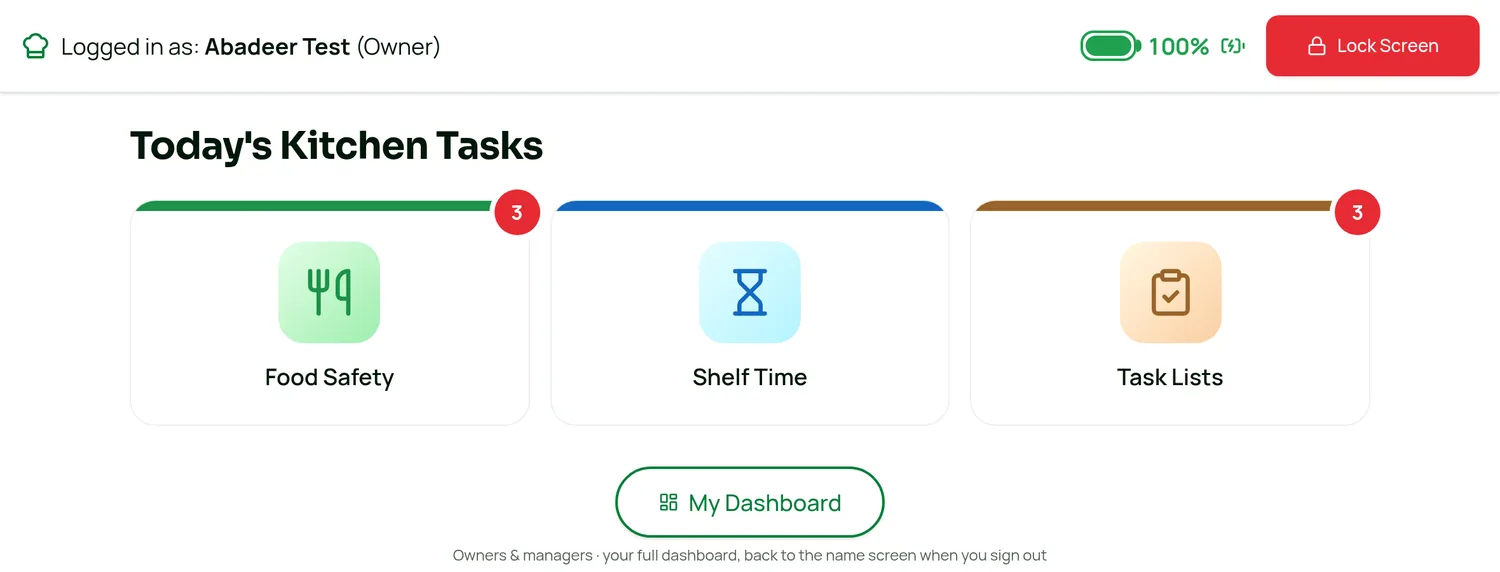
Tap a tile to open that section and record as normal. Save, and the tablet locks itself
When you save a record, a green bar shows Saved ✓ Locking in 8s and the tablet goes back to the name screen for the next person. Need to record something else? Tap Keep going.
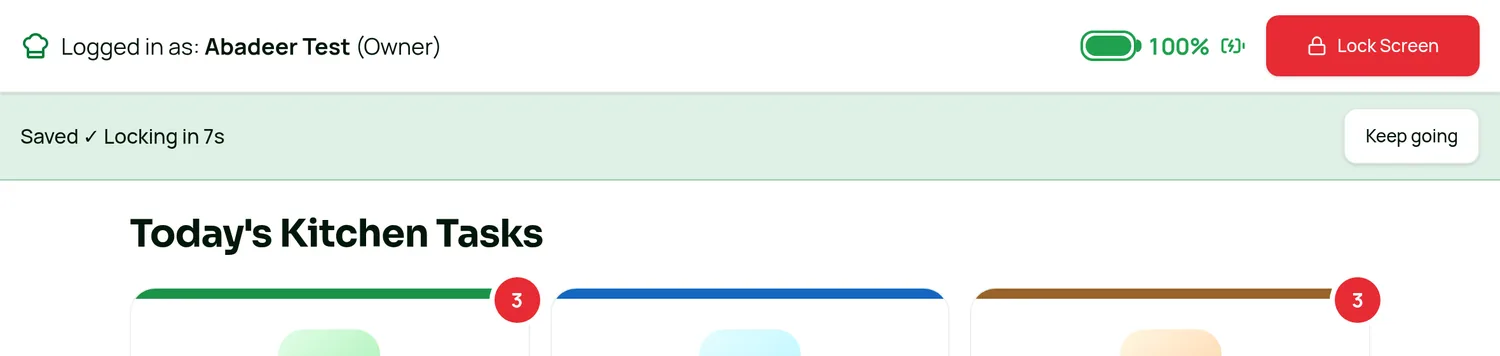
The countdown after saving. Keep going stops it. Finished? Tap Lock Screen
Tap the red Lock Screen button whenever you walk away. If you forget, the tablet locks itself after 60 seconds with nobody touching it, so nobody can record under your name.
Good to know
Part 4
Owners & managers on the tablet
Owners and managers sign in on the name screen with their PIN like everyone else. Below their tiles they also see a My Dashboard button, which opens their full LogYou dashboard on the tablet.
- A floating Back to Kitchen Tablet button returns to the name screen.
- Signing out also returns to the name screen — the tablet stays in KTM.
- The dashboard locks back to the name screen after 5 minutes with nobody using it.
Part 5
Exit KTM
When you want the tablet back as a normal device.
Swipe to exit KTM
On the name screen, drag the Swipe to exit KTM slider at the bottom all the way to the right. The swipe stops anyone exiting by accident.
Enter the exit passcode
Type the exit passcode chosen when KTM was turned on. The tablet leaves KTM and opens the dashboard of the person who turned it on.
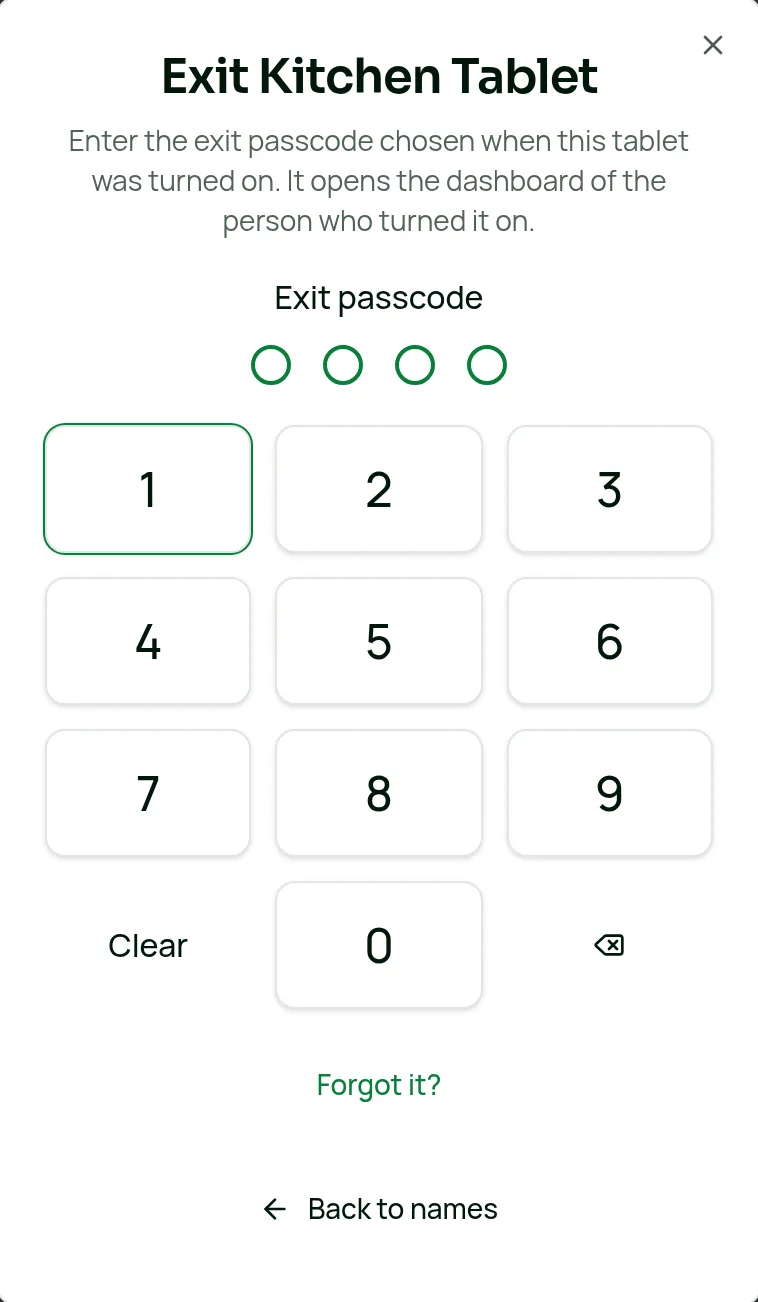
The exit passcode keypad, with Forgot it? underneath.
Part 6
Forgotten passcode or lost tablet
Forgot the exit passcode?
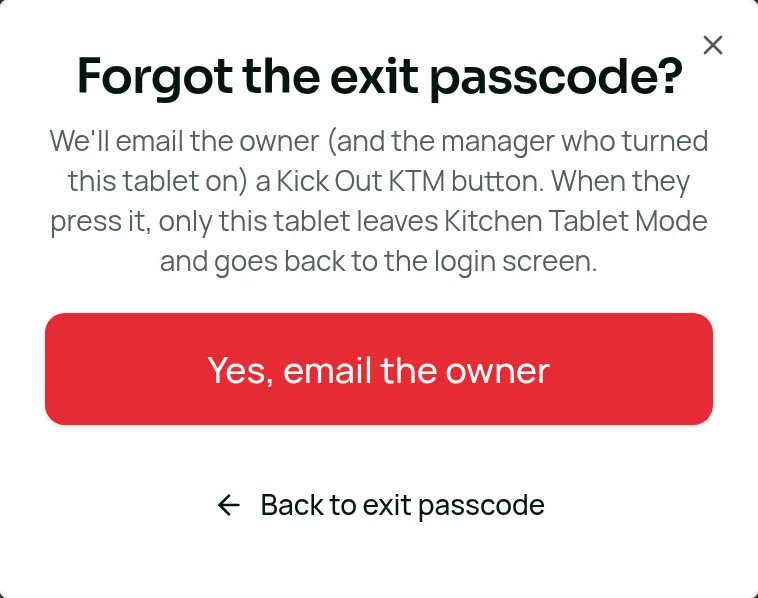
Tap Forgot it? on the exit keypad, then Yes, email the owner. LogYou emails the site owner (and the manager who turned the tablet on) a Kick Out KTM button. When they press it, only that tablet leaves KTM and goes back to the login screen. The link works once and lasts 24 hours.
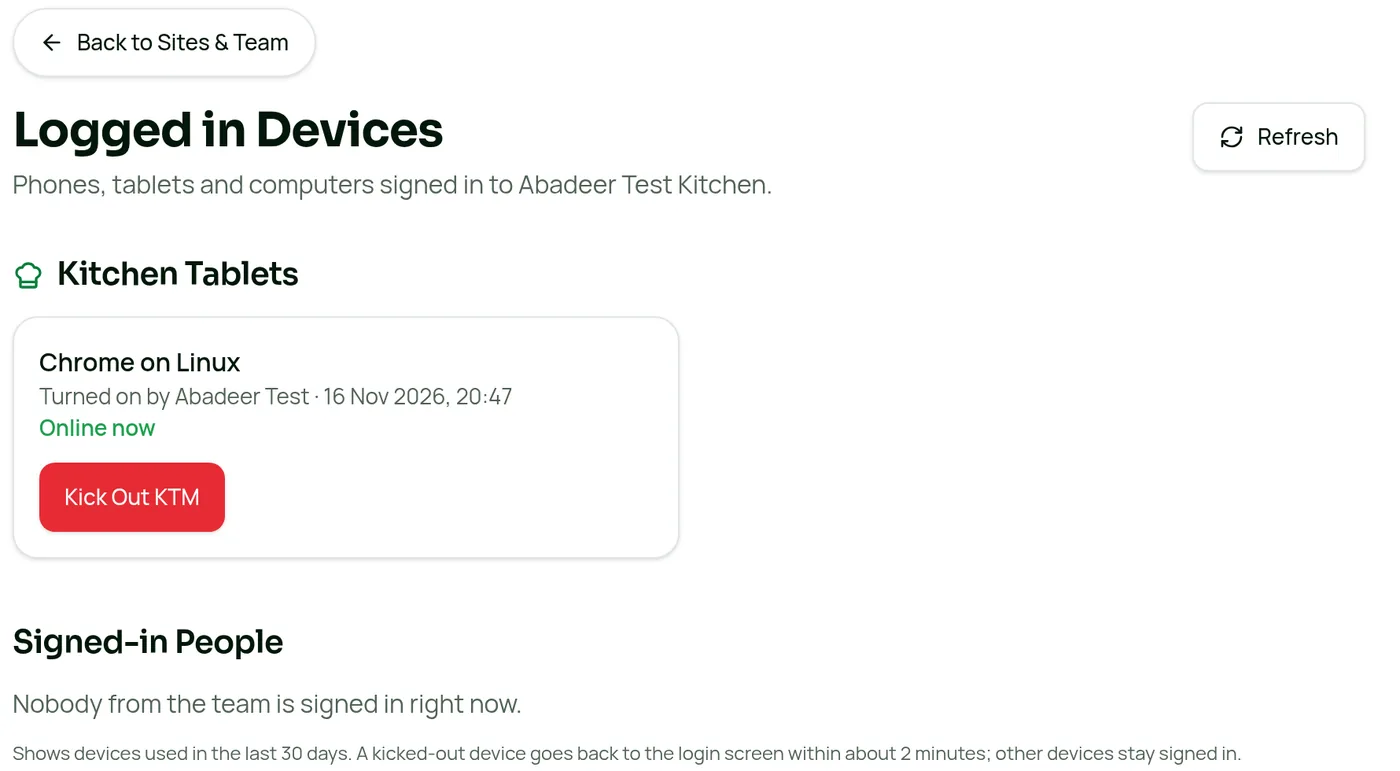
Tablet lost, stolen or not on site?
The owner can kick it out from any phone or computer: open Sites & Team → Logged in Devices, find the tablet under Kitchen Tablets and tap Kick Out KTM. It goes back to the login screen within about two minutes; every other device stays signed in.
Part 7
Security, PINs & training
- Wrong PIN or passcode: after 5 wrong tries that name (or the exit keypad) locks for 5 minutes, with a live countdown. Exit lockouts are recorded in the Activity Monitor and the owner is emailed.
- Someone forgot their PIN: an owner or manager opens Sites & Team → Team Members, taps the Edit Details pencil on that person's card and chooses Reset Tablet PIN to 2580. They pick a new PIN at their next tablet sign-in.
- Training due: if someone has training coming up, the tablet shows a reminder with the date. If their training is overdue, the tablet blocks them until they finish it on their phone or computer.
- Everything is logged: tablet sign-ins, PIN resets, exits and kick-outs all appear in the Activity Monitor under Sites & Team.
- Battery: on tablets that share their battery level, a meter shows next to the clock and a warning appears below 26% when unplugged.
Part 8
Quick reference
| First-time PIN for everyone | 2580 — each person must choose their own straight away |
|---|---|
| Screen locks with nobody using it | 60 seconds |
| Screen locks after a record is saved | 8 seconds (tap Keep going to stay) |
| Owner/manager dashboard on the tablet locks after | 5 minutes idle |
| Wrong PIN or exit passcode | 5 tries, then locked for 5 minutes |
| Who can turn KTM on | Owners and managers |
| Who can exit KTM | Anyone with the exit passcode (keep it to owners and managers) |
| Who can kick out a tablet | The site owner |
| Forgot it? email link | Works once, for 24 hours |
Want the bigger picture first? Read the Kitchen Tablet Mode overview, or go back to the How 2 user guide for other sections.
Try KTM on your own tablet
Start a free trial, add your team and turn on Kitchen Tablet Mode in under a minute.
Start Free 7-Day TrialNo card required